Async Job Queue
Breezz Steps allow you to delay the execution of code logic using the Scheduler. The following guide demonstrates how to configure an Async Job Queue Processor.
Step 1: Create the Step Class
First, review the core logic of the Step class.
public class ProcessingCreateContact extends forvendi.Step {
    public ProcessingCreateContact() {
        super(ProcessingCreateContact.class.getName());
    }

    public override Boolean initRecordProcessing(Object record, Object optionalOldRecord) {
        // Add incoming record to the AsyncJob
        addAsyncJob(((Account) record).Id);
        return false;
    }

    public override void executeAsyncProcess(Map<String, forvendi.AsyncJobInfo> asyncJobsByRecordKey){
        // For every record added in Async, insert new contacts
        for(String record : asyncJobsByRecordKey.keySet()){
            getContext().addToInsert(new Contact(LastName = 'Contact ' + System.now(), AccountId = record));
        }
    }
}
Step 2: Create the Test Class
Next, ensure the associated test class is properly configured:
@IsTest
private class ProcessingCreateContactTest {

    @TestSetup
    static void testSetup() {
        // Initialize Breezz setup.
        // Provide a forvendi.BreezzPlugins.BaseApexPlugin implementation to use public classes in Breezz.
        forvendi.BreezzApi.TESTS.init('BreezzPlugin');
    }

    @IsTest
    static void when_ExecuteContactGenerator_expect_GenerateContactForEveryAccount() {
        // Insert accounts to force synchronous execution of the ProcessingCreateContact class
        Account[] accs = new Account[]{ new Account(Name = 'new account 1'), new Account(Name = 'new account 2')};
        insert accs;

        Test.startTest();
        forvendi.ModificationContext ctx = forvendi.BreezzApi.STEPS.build()
                .addStep(new ProcessingCreateContact())
                .execute(accs);

        forvendi.BreezzApi.TESTS.deliverAsyncQueueEvents();
        Test.stopTest();

        // Perform a SOQL query to retrieve the contacts associated with the accounts
        List<Contact> contacts = [SELECT Id, AccountId FROM Contact WHERE AccountId IN :accs];

        // Assert that the number of contacts created matches the number of accounts created
        Assert.areEqual(2, contacts.size());
    }
}
How it works:
- This class is executed by a Step.
- Upon Account creation, its ID is placed into the queue using the
addAsyncJobmethod. - These record IDs are stored securely in the queue until the scheduler runs.
- During the scheduler’s execution, a Contact is generated for every queued Account.
- Once the process completes successfully, the system automatically clears the queue.
Step 3: Modify the Step Configuration
You must update the Step configuration to utilize the asynchronous queue.
-
Navigate to Breezz Setup → Step Groups → Select Account_AI → ProcessingCreateContact → Edit.
-
Under the Async Configuration section, apply the following settings:
- Async Strategy: Set to
Multi Queueable. - Is Queued: Set to
Queued. - Realtime Processing: Set to
Wait For Scheduler.
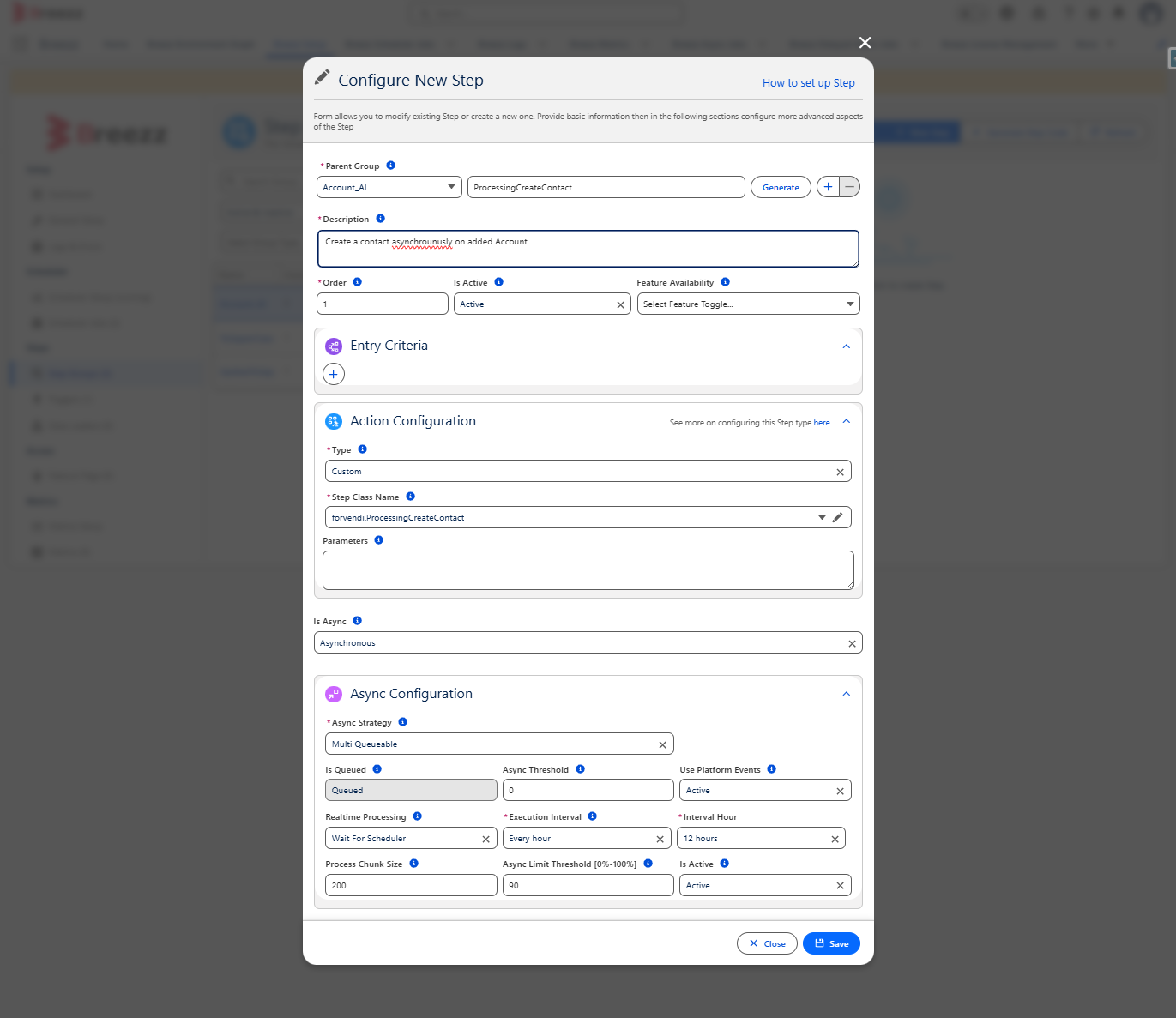
- Click Save and proceed to the final step.
Step 4: Verify the Scheduler Job
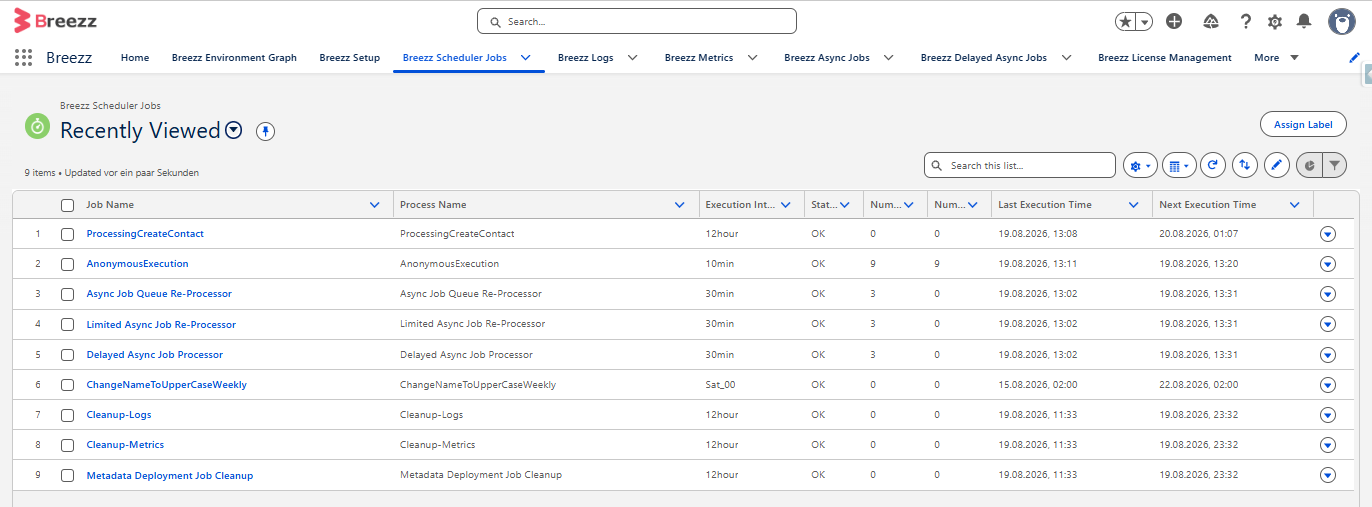
To confirm that the scheduler job is active, navigate to the App Launcher → Breezz → Breezz Scheduler Jobs → All Custom Jobs.
You should see your newly created Scheduler record listed:
Manual Execution
If the scheduler record is missing or you need to run it immediately, you can trigger it manually using one of the following methods:
Option 1: Via Developer Console
Open the Execute Anonymous Window and run the following Apex snippet:
forvendi.BreezzApi.SCHEDULER.rerun();Option 2: Via the User Interface
Click Run Manually directly from the Scheduler Jobs Settings within the Scheduler Jobs tab.