Platform Event Trigger Handler
Handling incoming Platform Events in Breezz allows you to process asynchronous pub/sub event streams cleanly using standard Step classes and ModificationContext.
Step 1: Create a Platform Event
In Salesforce, navigate to Setup → Platform Events → New Platform Event and define your custom fields (e.g., FirstName__c, LastName__c, Email__c, Phone__c, Status__c, Company__c).
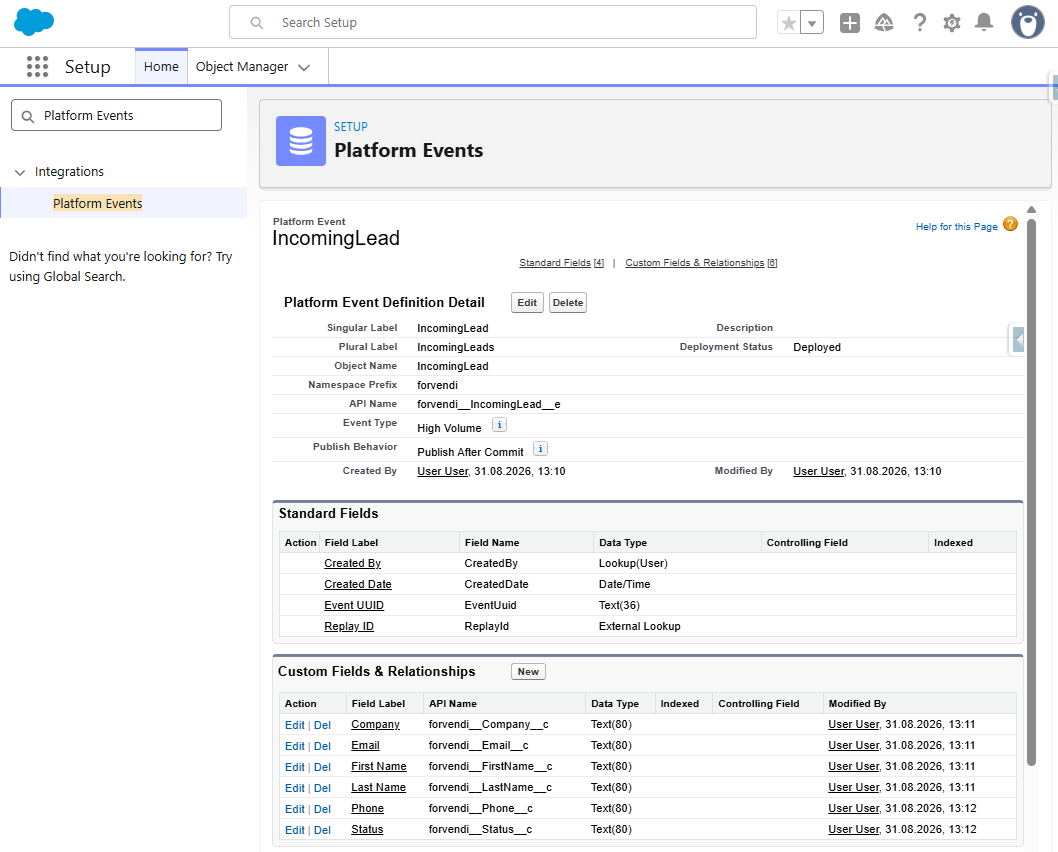
Step 2: Create the Apex Trigger
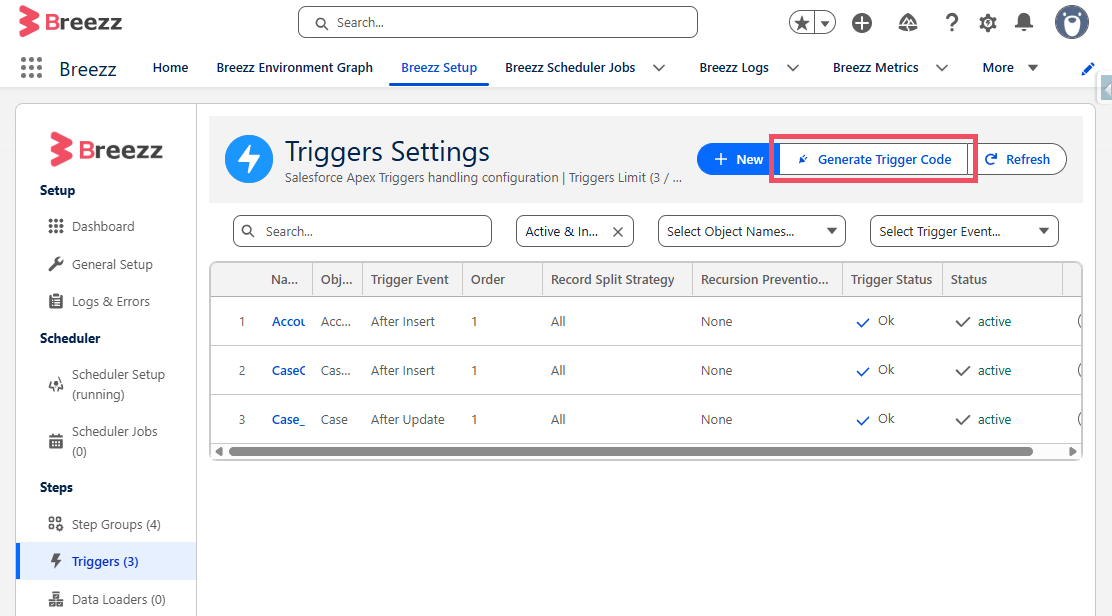
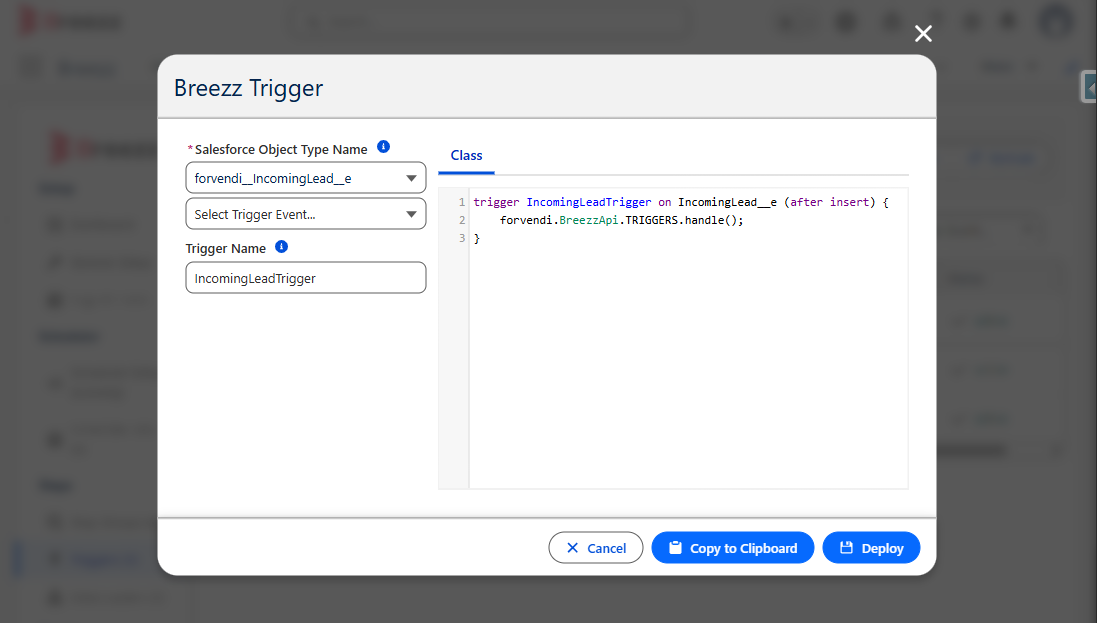
Generate or write the trigger on your custom Platform Event (IncomingLead__e). Platform Event triggers always execute within the After Insert pass:
trigger IncomingLeadTrigger on IncomingLead__e (after insert) {
    forvendi.BreezzApi.TRIGGERS.handle();
}
Step 3: Create the Trigger Configuration
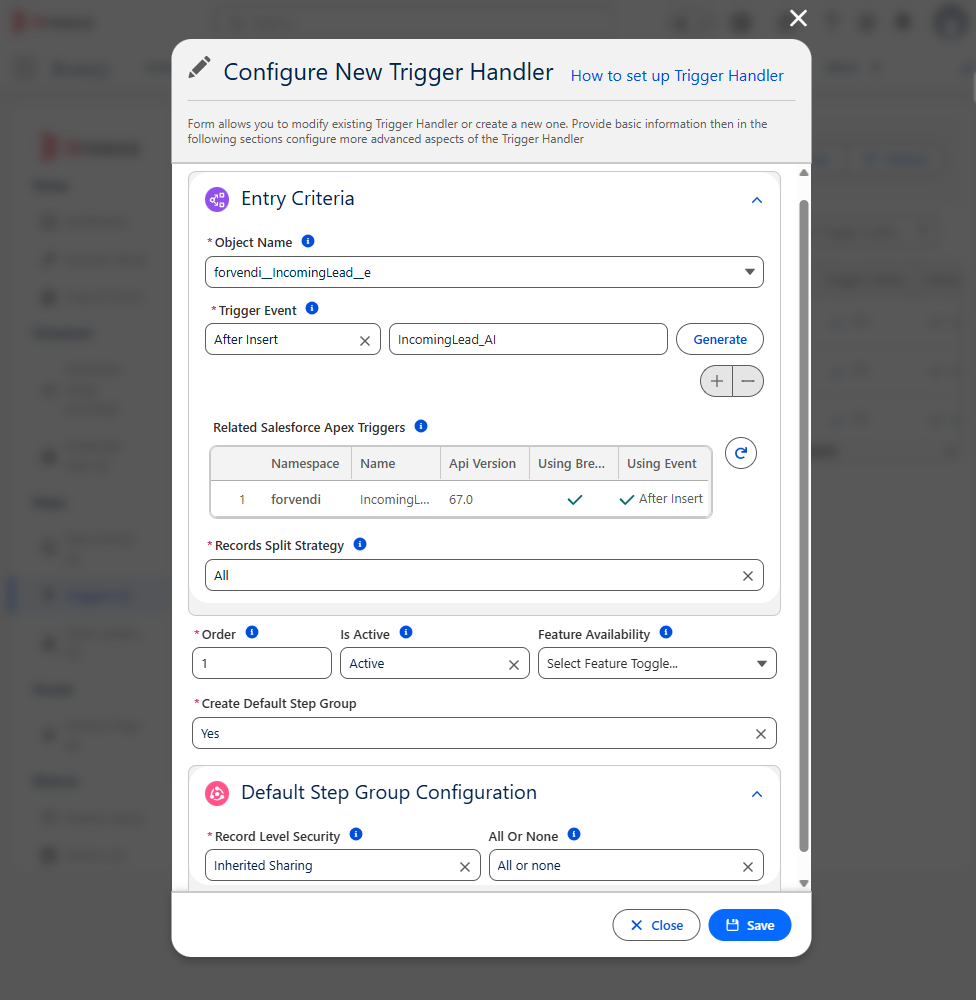
Navigate to Breezz Setup → Triggers → New and configure the event trigger:
- Object Name:
IncomingLead__e - Trigger Event:
After Insert - Create Default Step Group: Set to Yes to automatically build a bound Step Group.
Step 4: Create the Step Class
Create an Apex Step class extending forvendi.Step to map event payload fields into target SObject records:
public with sharing class IncomingLeads extends forvendi.Step {

    public IncomingLeads() {
        super(IncomingLeads.class.getName());
    }

    public override Boolean initRecordProcessing(Object record, Object optionalOldRecord) {
        IncomingLead__e incomingLead = (IncomingLead__e) record;

        // Instantiate Lead record based on incoming Platform Event payload
        Lead lead = new Lead(
            FirstName = incomingLead.FirstName__c,
            LastName = incomingLead.LastName__c,
            Email = incomingLead.Email__c,
            Phone = incomingLead.Phone__c,
            Status = incomingLead.Status__c,
            Company = incomingLead.Company__c
        );

        // Queue lead insertion in ModificationContext
        getContext().addToInsert(lead);

        return false;
    }
}
Step 5: Write a Unit Test for the Step Class
Create a unit test validating event handling and record insertion:
@IsTest
private class IncomingLeadsTest {

    @TestSetup
    static void testSetup() {
        forvendi.BreezzApi.TESTS.init('BreezzPlugin');
    }

    @IsTest
    static void when_IncomingLead_eIsPublished_expect_LeadWillBeCreated() {
        IncomingLead__e incomingLead = new IncomingLead__e(
            FirstName__c = 'Tom',
            LastName__c = 'Stewart',
            Email__c = 'stewart123@ww.xx',
            Phone__c = '111222333',
            Status__c = 'New - Not Contacted',
            Company__c = 'Company ABC'
        );
        List<IncomingLead__e> incomingLeads = new List<IncomingLead__e>{ incomingLead };

        Test.startTest();
        forvendi.ModificationContext ctx = forvendi.BreezzApi.STEPS.build()
            .addStep(new IncomingLeads())
            .execute(incomingLeads);
        Test.stopTest();

        forvendi.BreezzApi.TESTS.assertErrorLogs();
        Assert.areEqual(1, ctx.getRecordsToInsert().size());
    }
}
Step 6: Register the Step in Breezz Setup
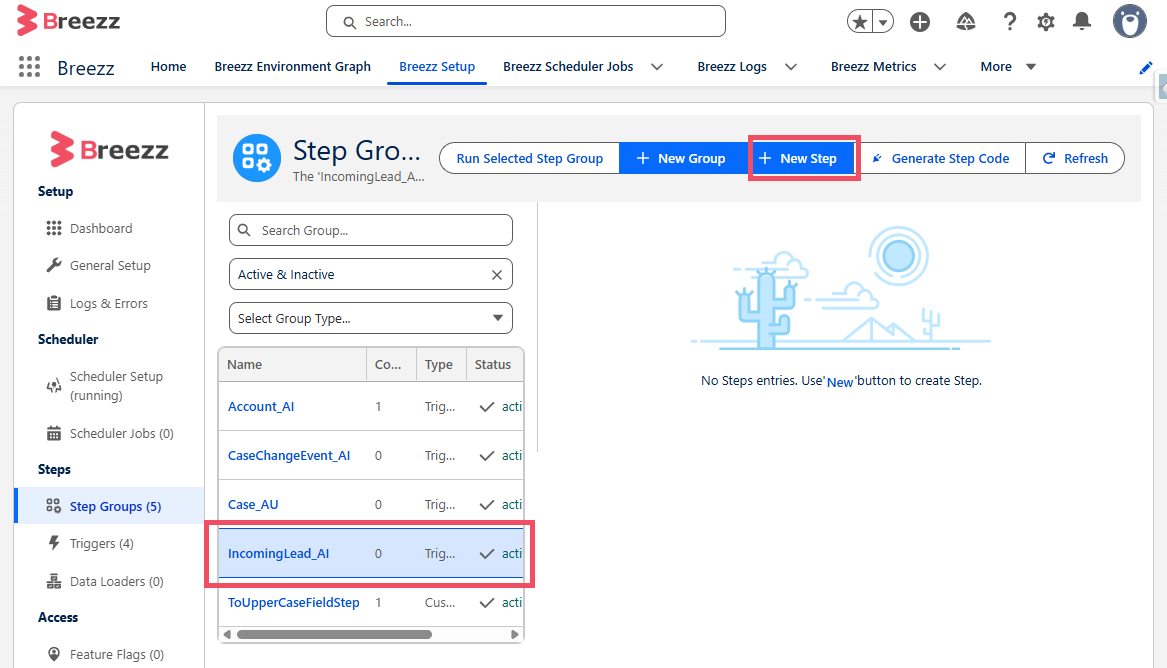
Go to Breezz Setup → Step Groups → Select Target Group → New Step.
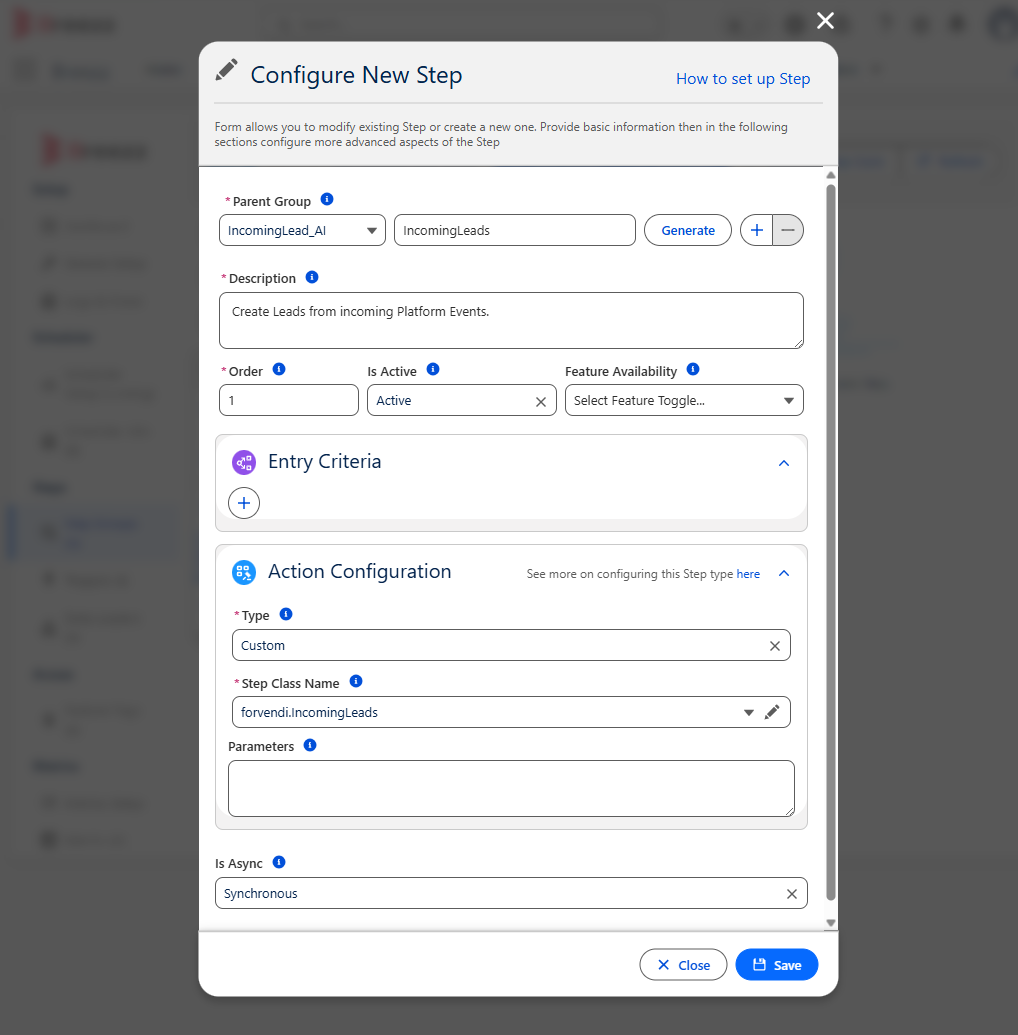
Set Step Class Name to IncomingLeads, enter an execution Order, and save.
Step 7: Test the Platform Event Execution
Open Developer Console → Debug → Open Execute Anonymous Window and publish a sample event:
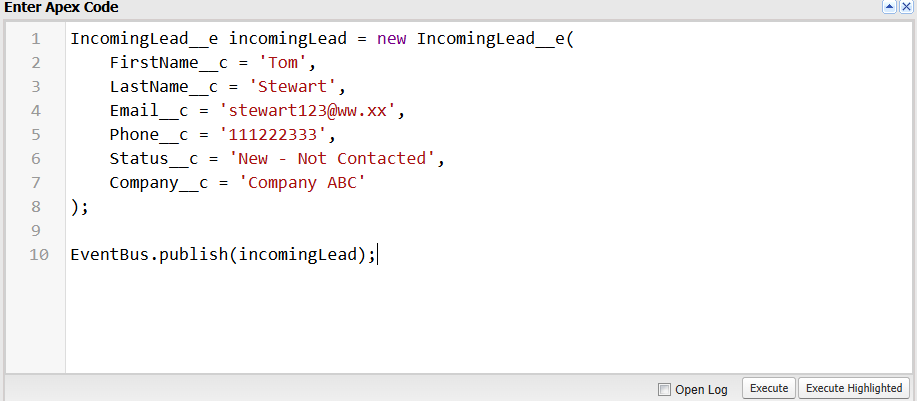
IncomingLead__e incomingLead = new IncomingLead__e(
    FirstName__c = 'Tom',
    LastName__c = 'Stewart',
    Email__c = 'stewart123@ww.xx',
    Phone__c = '111222333',
    Status__c = 'New - Not Contacted',
    Company__c = 'Company ABC'
);

EventBus.publish(incomingLead);
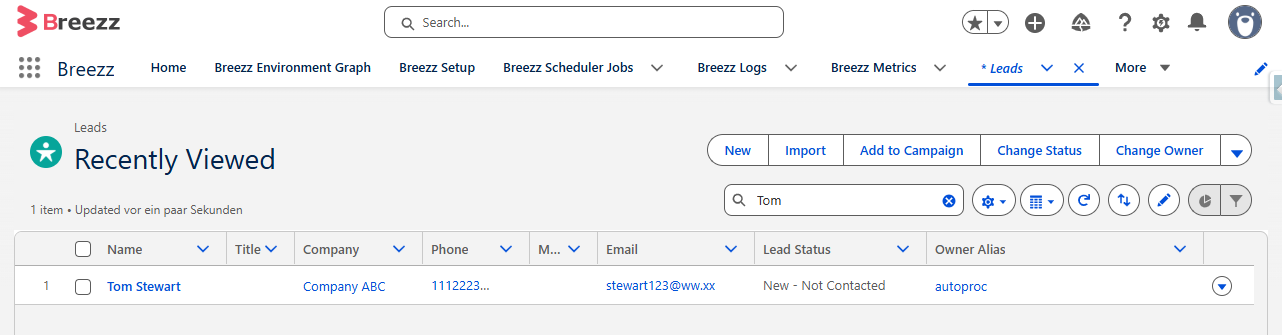
Upon publishing, the trigger fires automatically and creates the Lead record:
💡 Apex API Reference: To learn more about transactional insertion methods (
addToInsert), visit Breezz APEX API - ModificationContext.