Delayed Async Execution Example
The Breezz framework enables you to schedule delayed asynchronous execution of business logic inside Steps using addDelayedAsyncJob(). Delayed jobs are queued in Salesforce and automatically processed by the Breezz Scheduler worker at defined intervals.
Step 1: Create the Apex Trigger and Configuration
Ensure an After Insert Apex trigger and Breezz Trigger configuration exist for the target object (e.g., Account_AI on Account):
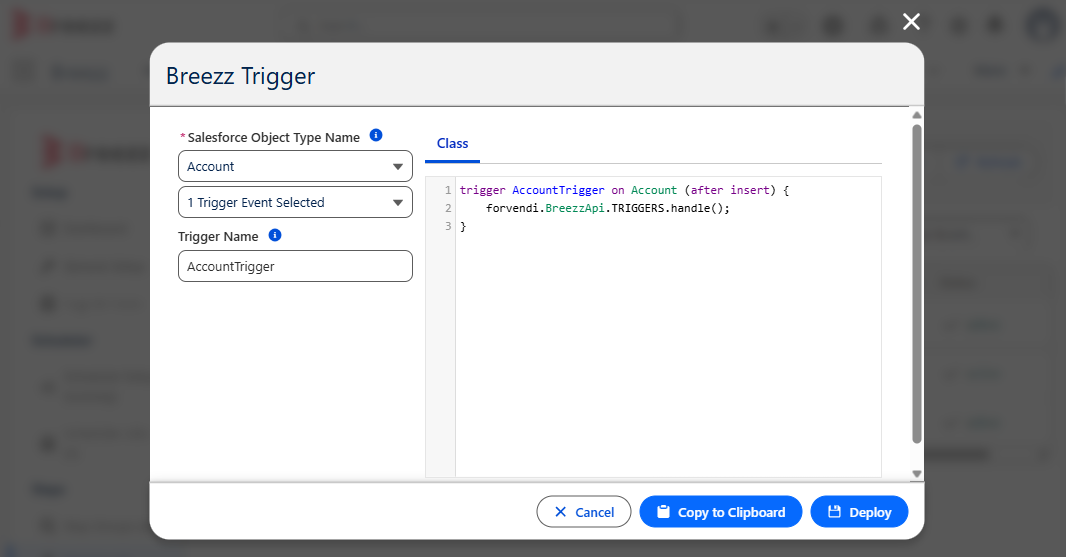
trigger AccountTrigger on Account (after insert) {
    forvendi.BreezzApi.TRIGGERS.handle();
}
Step 2: Create the Delayed Step Class
Create an Apex class extending forvendi.Step. Use addDelayedAsyncJob(recordId, scheduledTime) in initRecordProcessing and place your execution logic inside executeAsyncProcess:
public class DelayedContactGenerator extends forvendi.Step {

    public DelayedContactGenerator() {
        super(DelayedContactGenerator.class.getName());
    }

    public override Boolean initRecordProcessing(Object record, Object optionalOldRecord) {
        Account accountRecord = (Account) record;

        // Queue a delayed job starting from the current Datetime
        addDelayedAsyncJob(accountRecord.Id, System.now());

        return false;
    }

    public override void executeAsyncProcess(Map<String, forvendi.AsyncJobInfo> asyncJobsByRecordKey) {
        // Execute background logic once the delay window elapses
        for (String recordId : asyncJobsByRecordKey.keySet()) {
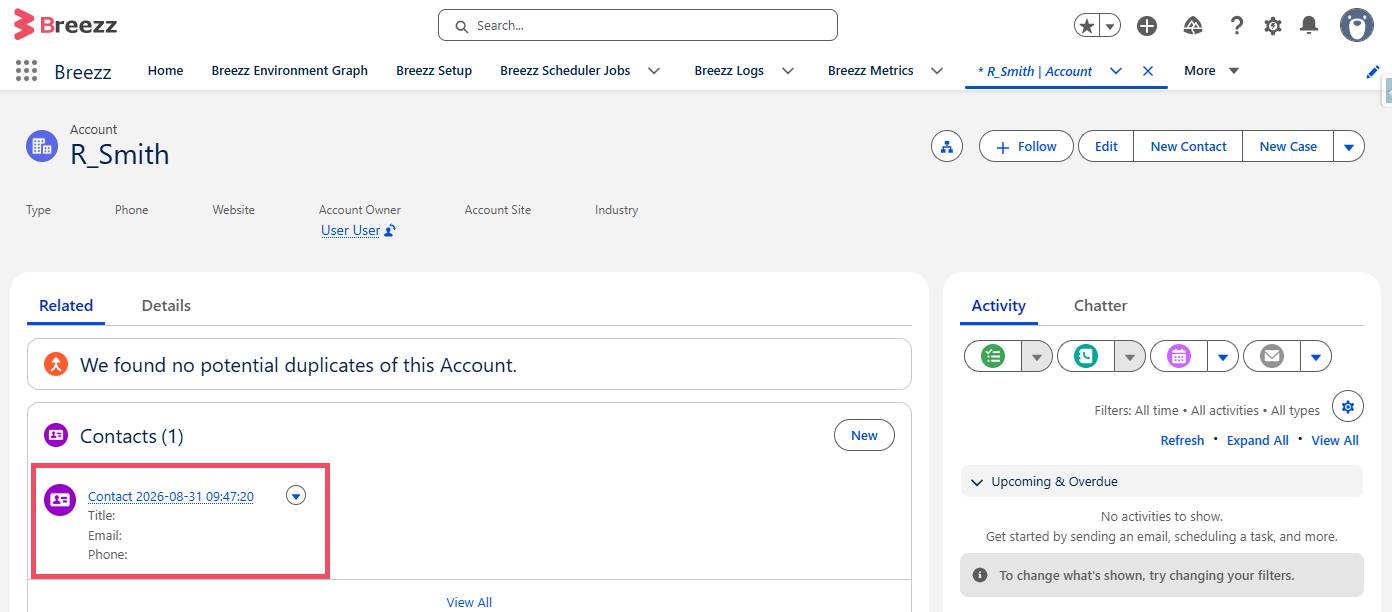
            getContext().addToInsert(new Contact(
                LastName = 'Contact ' + System.now(),
                AccountId = recordId
            ));
        }
    }
}
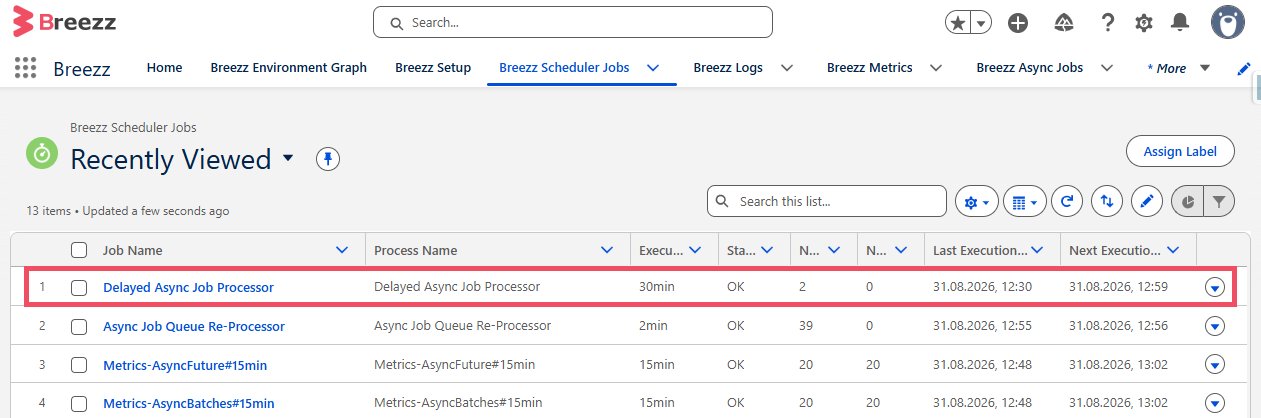
ℹ️ Default Processing Interval: By default, delayed jobs are evaluated every 30 minutes. You can adjust this execution frequency under Breezz Setup → Scheduler Setup → Delayed Jobs Processing Configuration.
Step 3: Write a Unit Test for the Step Class
To test delayed asynchronous steps, invoke forvendi.BreezzApi.TESTS.deliverDelayedAsyncJobs() alongside deliverAsyncQueueEvents() during unit test execution:
@IsTest
private class DelayedContactGeneratorTest {

    @TestSetup
    static void testSetup() {
        forvendi.BreezzApi.TESTS.init('BreezzPlugin');
    }

    @IsTest
    static void when_ExecuteContactGenerator_expect_GenerateContactForEveryAccount() {
        Account[] accs = new Account[]{
            new Account(Name = 'New Account 1'),
            new Account(Name = 'New Account 2')
        };
        insert accs;

        Test.startTest();
        forvendi.ModificationContext ctx = forvendi.BreezzApi.STEPS.build()
            .addStep(new DelayedContactGenerator())
            .execute(accs);

        // Process delayed job queues and event streams synchronously during unit tests
        forvendi.BreezzApi.TESTS.deliverAsyncQueueEvents();
        forvendi.BreezzApi.TESTS.deliverDelayedAsyncJobs();
        forvendi.BreezzApi.TESTS.deliverAsyncQueueEvents();
        Test.stopTest();

        // Verify generated contacts
        List<Contact> contacts = [SELECT Id, AccountId FROM Contact WHERE AccountId IN :accs];
        Assert.areEqual(2, contacts.size());
    }
}
Step 4: Register the Step in Breezz Setup
- Go to Breezz Setup → Step Groups → Account_AI → New Step.
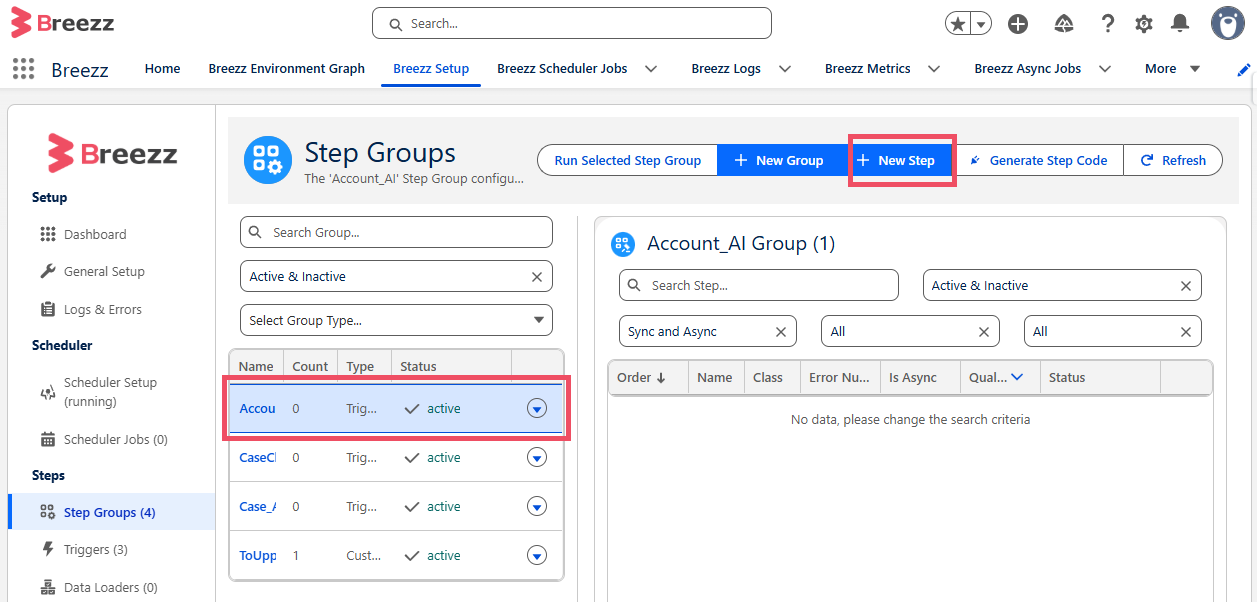
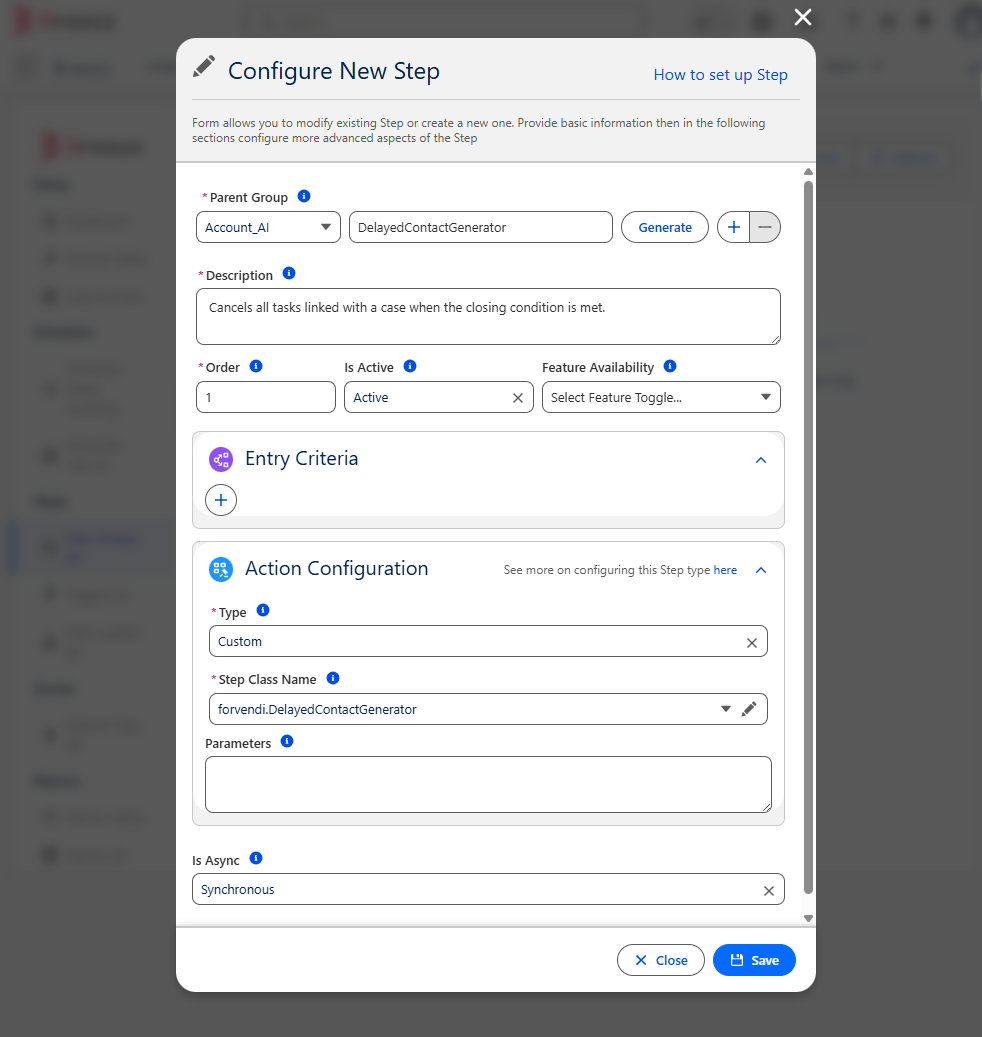
- Select
DelayedContactGeneratoras the Step Class Name. - Set the Name, Description, and execution Order.
Step 5: Monitor and Verify Delayed Execution
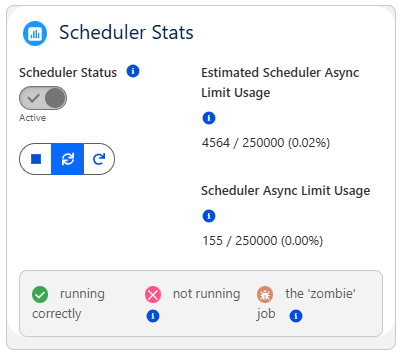
- Verify Scheduler Status: Go to Breezz Setup → Scheduler Setup and ensure the Scheduler Status is active.
- Inspect Pending Delayed Jobs: Navigate to the App Launcher and select Breezz Delayed Async Jobs to view queued items waiting for the execution window.
- Audit Execution Logs: Check Breezz Scheduler Jobs to review worker batch runs and execution history.
💡 Apex API Reference: To learn more about asynchronous helper methods (
addDelayedAsyncJob,deliverDelayedAsyncJobs), check out Breezz APEX API - Step Reference.