Autolaunched Flow
The Breezz Framework allows you to schedule and automate standard Salesforce Autolaunched Flows.
Step 1: Create the Flow
Scenario: You need to change the Rating of Accounts from Warm to Cold once a week based on specific conditions (e.g., the related Case status has not been updated in a certain number of days).
For demonstration purposes, the following flow simply updates the Account rating without additional complex conditions.
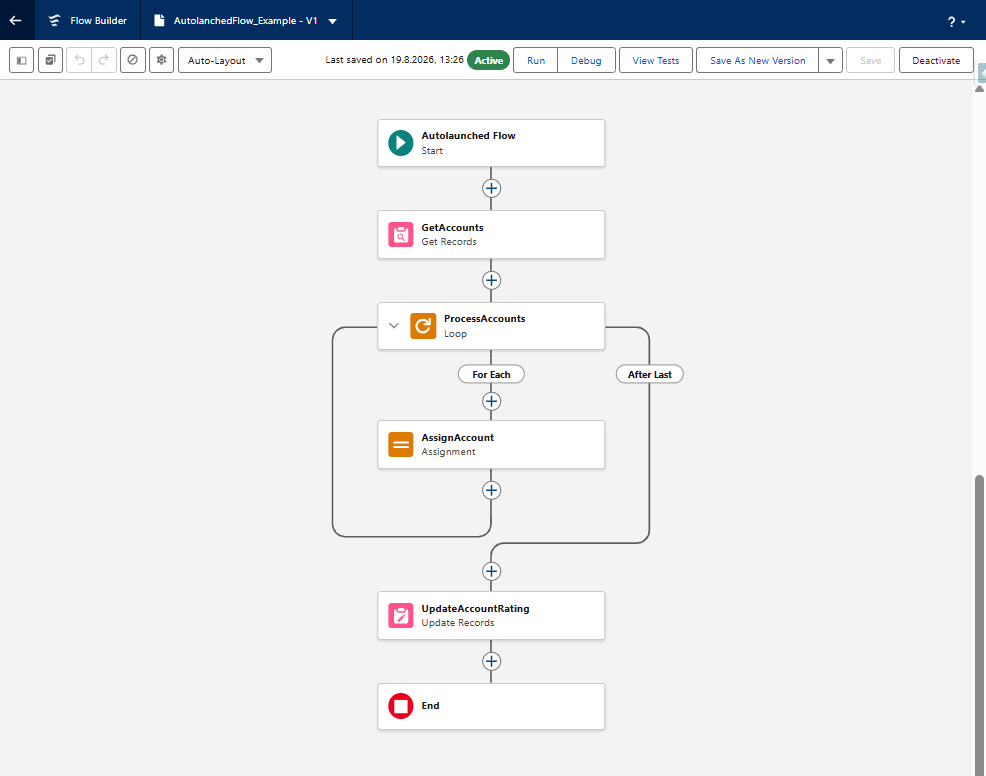
This flow updates the Rating field on the processed Account records from Warm to Cold.
Step 2: Register the Scheduler Job
- To add this Autolaunched Flow to the Scheduler, navigate to Breezz Setup → Scheduler Jobs and click New.
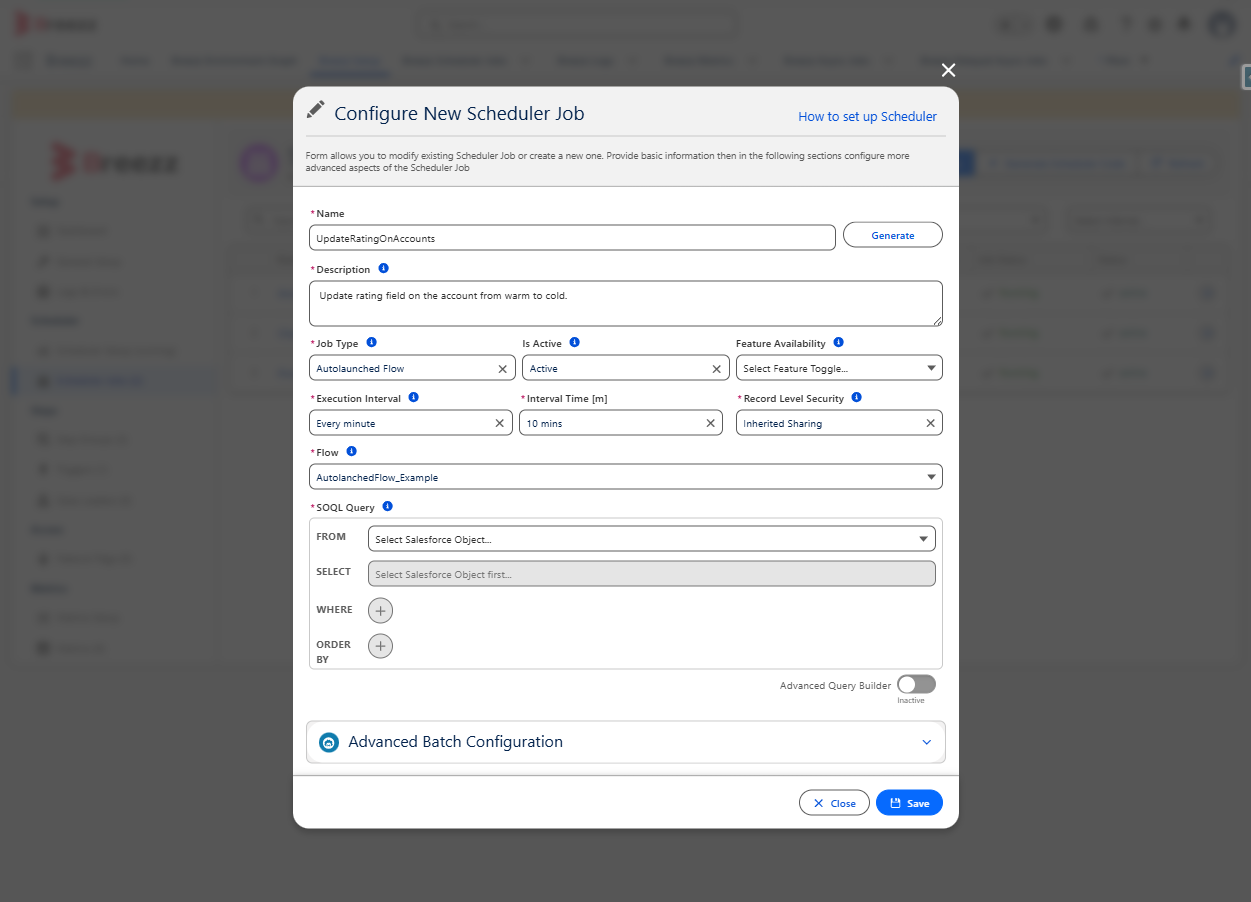
- Populate the configuration form with the following details:
- Name: Provide a clear identifier for the Scheduler Job.
- Description: Enter a comprehensive explanation of the flow’s purpose.
- Job Type: Select Autolaunched Flow.
- Execution Interval: Define when the scheduler should execute (e.g., Sunday midnight).
- Flow: Enter the API name of the target Flow.
- SOQL Query: Provide a
SELECTstatement to define the exact records the Flow should process.
- After filling out all required fields, click Save and re-run the Scheduler from the Scheduler Setup or trigger it manually.
Step 3: Verify the Scheduler Job
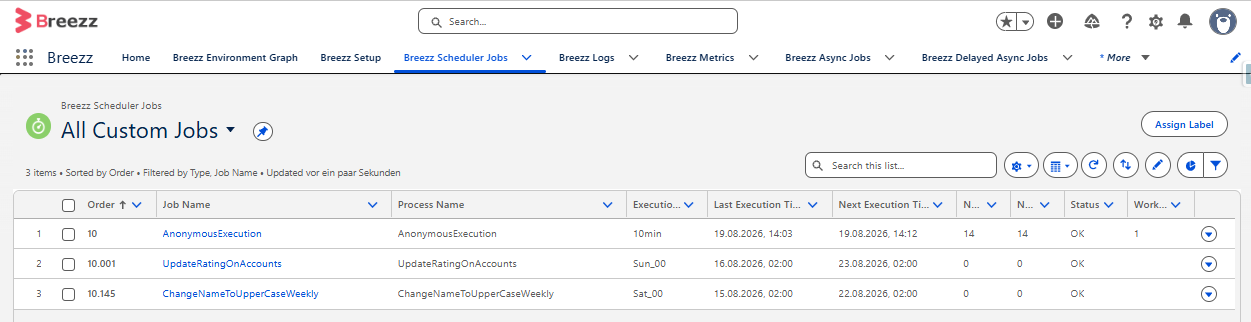
To confirm that the scheduler was created successfully, navigate to the App Launcher → Breezz → Breezz Scheduler Jobs → All Custom Jobs.
You should see your new Scheduler record listed here:
ℹ️ Note on Data Volumes: The standard Autolaunched Flow job type is designed to run frequently on smaller datasets. If you need to process large data volumes (e.g., 10,000+ records), you should use the Autolaunched Flow - Batch job type instead, which is optimized for bulk transaction processing.