Async Step Execution Example
The Breezz framework allows business logic implemented inside Steps to be executed offloaded and processed asynchronously in the background using native framework queuing engines.
Step 1: Create the Apex Trigger and Trigger Configuration
- Ensure an After Insert Apex trigger is active on the target object (e.g.,
Account):
trigger AccountTrigger on Account (after insert) {
    forvendi.BreezzApi.TRIGGERS.handle();
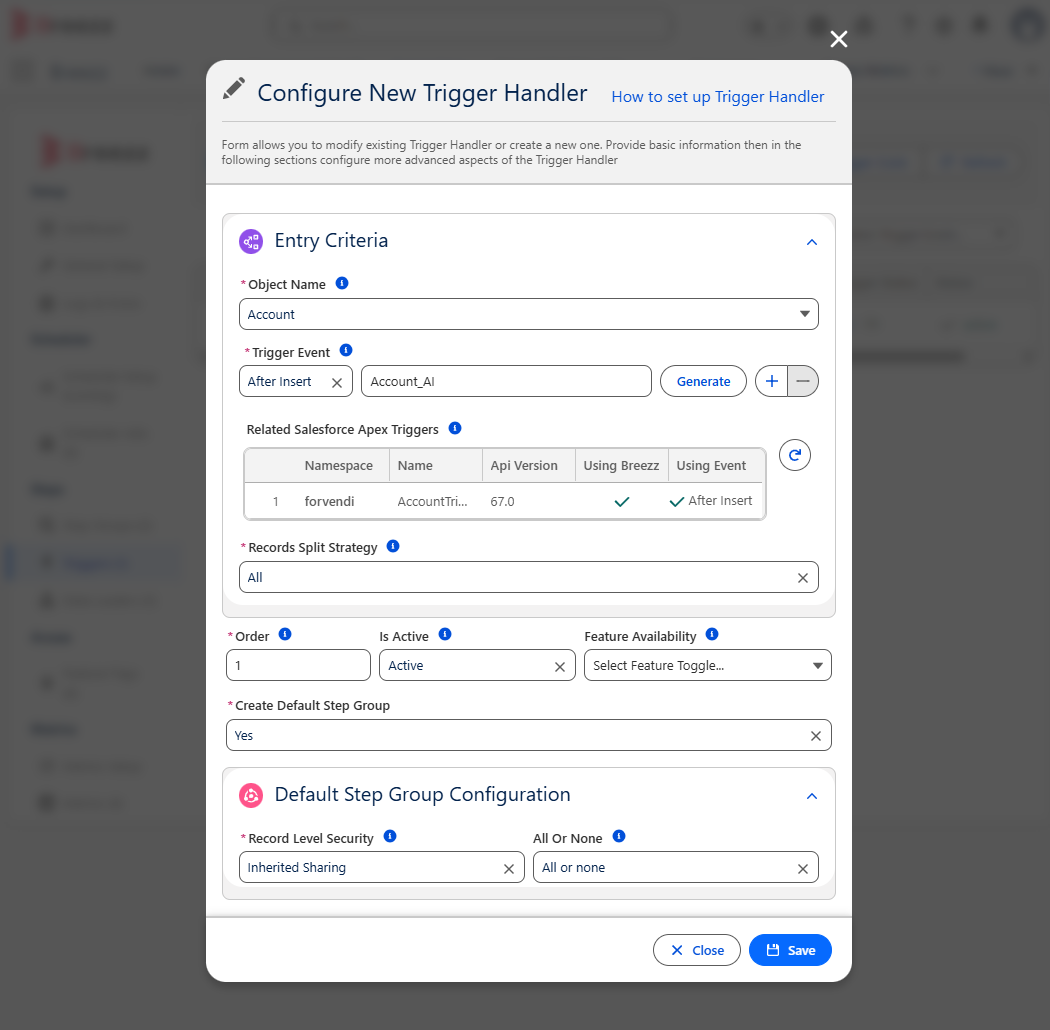
}- Navigate to Breezz Setup → Triggers → New.
- Create a trigger configuration for
Accounton After Insert (e.g., namedAccount_AI).
Step 2: Create the Asynchronous Step Class
Create an Apex class extending forvendi.Step. Use addAsyncJob() inside initRecordProcessing to enqueue records, and place your background execution logic inside executeAsyncProcess:
public class ProcessingCreateContact extends forvendi.Step {

    public ProcessingCreateContact() {
        super(ProcessingCreateContact.class.getName());
    }

    public override Boolean initRecordProcessing(Object record, Object optionalOldRecord) {
        // Enqueue the record ID for asynchronous processing
        addAsyncJob(((Account) record).Id);
        return false;
    }

    public override void executeAsyncProcess(Map<String, forvendi.AsyncJobInfo> asyncJobsByRecordKey) {
        // Execute background logic for queued records
        for (String recordId : asyncJobsByRecordKey.keySet()) {
            getContext().addToInsert(new Contact(
                LastName = 'Contact ' + System.now(),
                AccountId = recordId
            ));
        }
    }
}
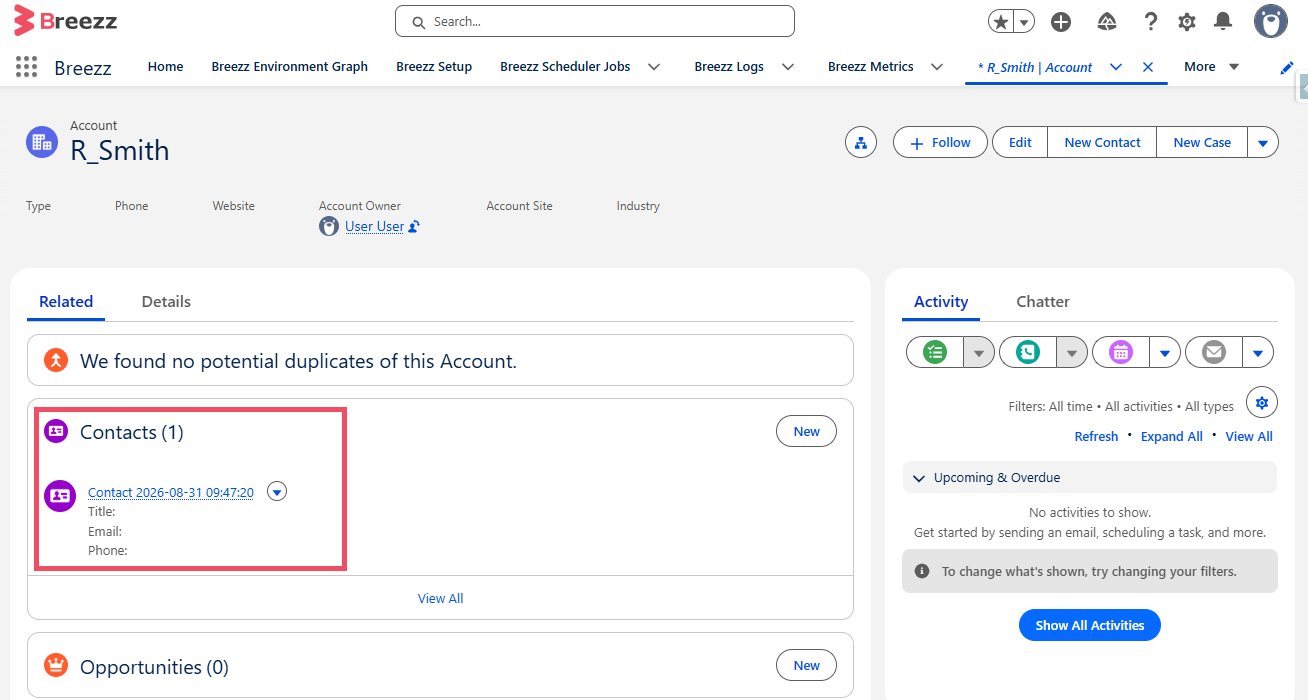
When an Account is created, its Record ID is pushed into the AsyncJob queue. The framework then executes executeAsyncProcess asynchronously in a separate background execution context.
Step 3: Create a Unit Test for the Step Class
To test asynchronous Steps, use forvendi.BreezzApi.TESTS.deliverAsyncQueueEvents() between Test.startTest() and Test.stopTest() to force synchronous processing of queued background events:
@IsTest
private class ProcessingCreateContactTest {

    @TestSetup
    static void testSetup() {
        forvendi.BreezzApi.TESTS.init('BreezzPlugin');
    }

    @IsTest
    static void when_ExecuteContactGenerator_expect_GenerateContactForEveryAccount() {
        Account[] accs = new Account[]{
            new Account(Name = 'New Account 1'),
            new Account(Name = 'New Account 2')
        };
        insert accs;

        Test.startTest();
        forvendi.ModificationContext ctx = forvendi.BreezzApi.STEPS.build()
            .addStep(new ProcessingCreateContact())
            .execute(accs);

        // Force synchronous execution of queued async jobs during unit testing
        forvendi.BreezzApi.TESTS.deliverAsyncQueueEvents();
        Test.stopTest();

        // Verify generated contacts
        List<Contact> contacts = [SELECT Id, AccountId FROM Contact WHERE AccountId IN :accs];
        Assert.areEqual(2, contacts.size());
    }
}
Step 4: Register the Step in Breezz Setup
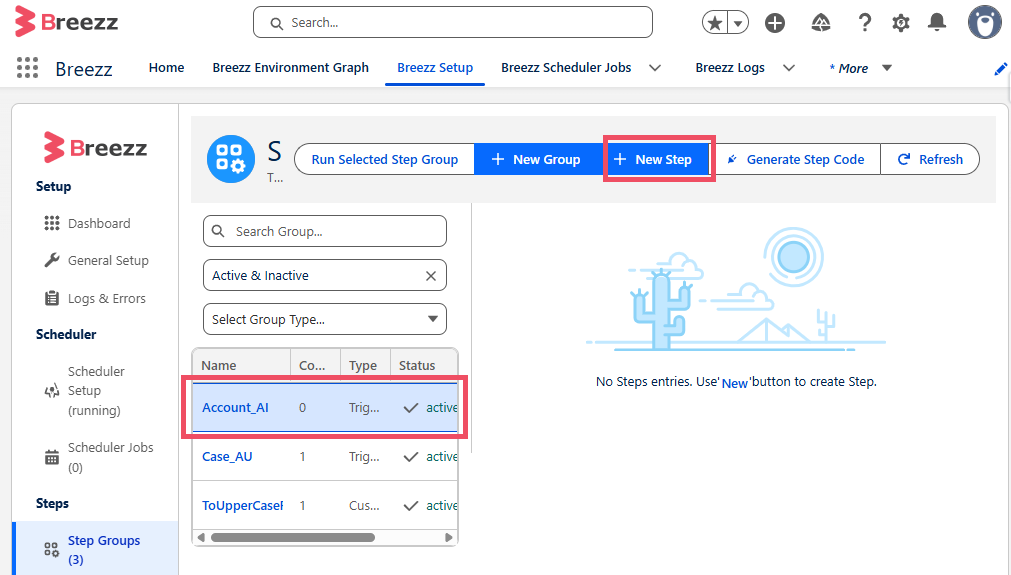
- Go to Breezz Setup → Step Groups → Account_AI → New Step.
- Select
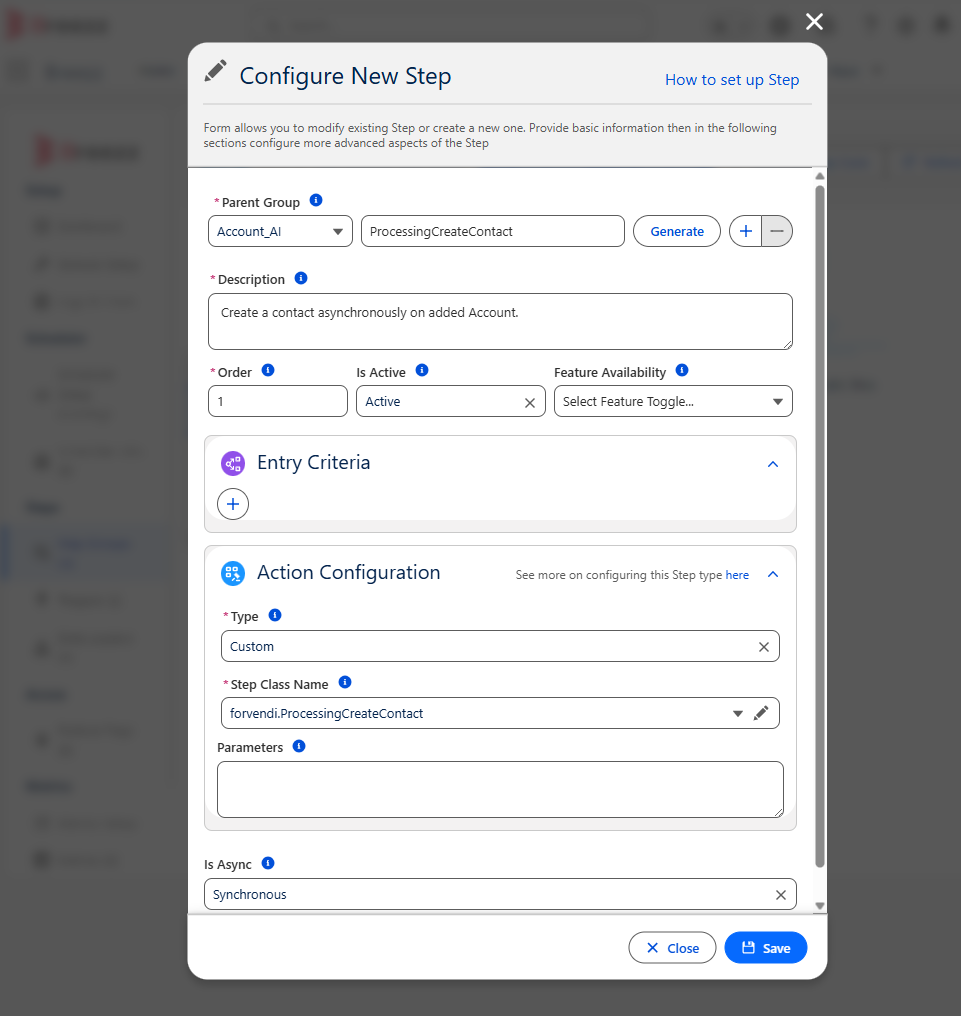
ProcessingCreateContactas the Step Class Name. - Fill in the Name, Description, and execution Order.
Step 5: Verify Asynchronous Execution
1. Verify Scheduler Status
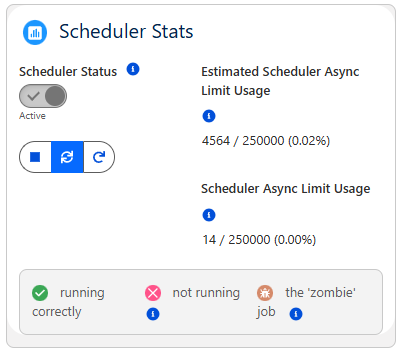
Navigate to Breezz Setup → Scheduler Setup and confirm that Scheduler Status is active:
2. Execute and Audit
- Navigate to App Launcher → Accounts and create a new Account record.
- The asynchronous job will process automatically within the interval defined by the Breezz Scheduler.
- To monitor pending or executed background jobs, open the App Launcher and select Breezz Async Jobs.
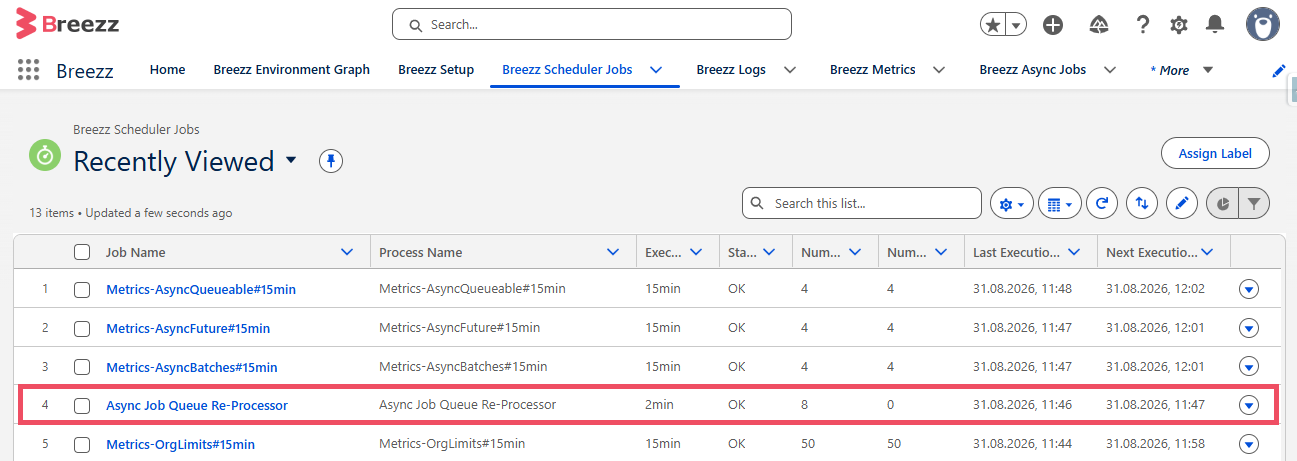
- To verify background worker execution times, check Breezz Scheduler Jobs.
💡 Apex API Reference: To learn more about asynchronous methods (
addAsyncJob,executeAsyncProcess), visit Breezz APEX API - Step Class and Breezz APEX API - Async.