How to Run Step Group from Flow
The Breezz Framework allows you to execute Step Groups and their underlying Steps directly within Salesforce Flows.
Below are two common scenarios for invoking a Step Group from a Flow: passing a Set of IDs or passing a List of SObjects.
Prerequisites & Step Class Setup
First, ensure you have a Step Group created in Breezz Setup.
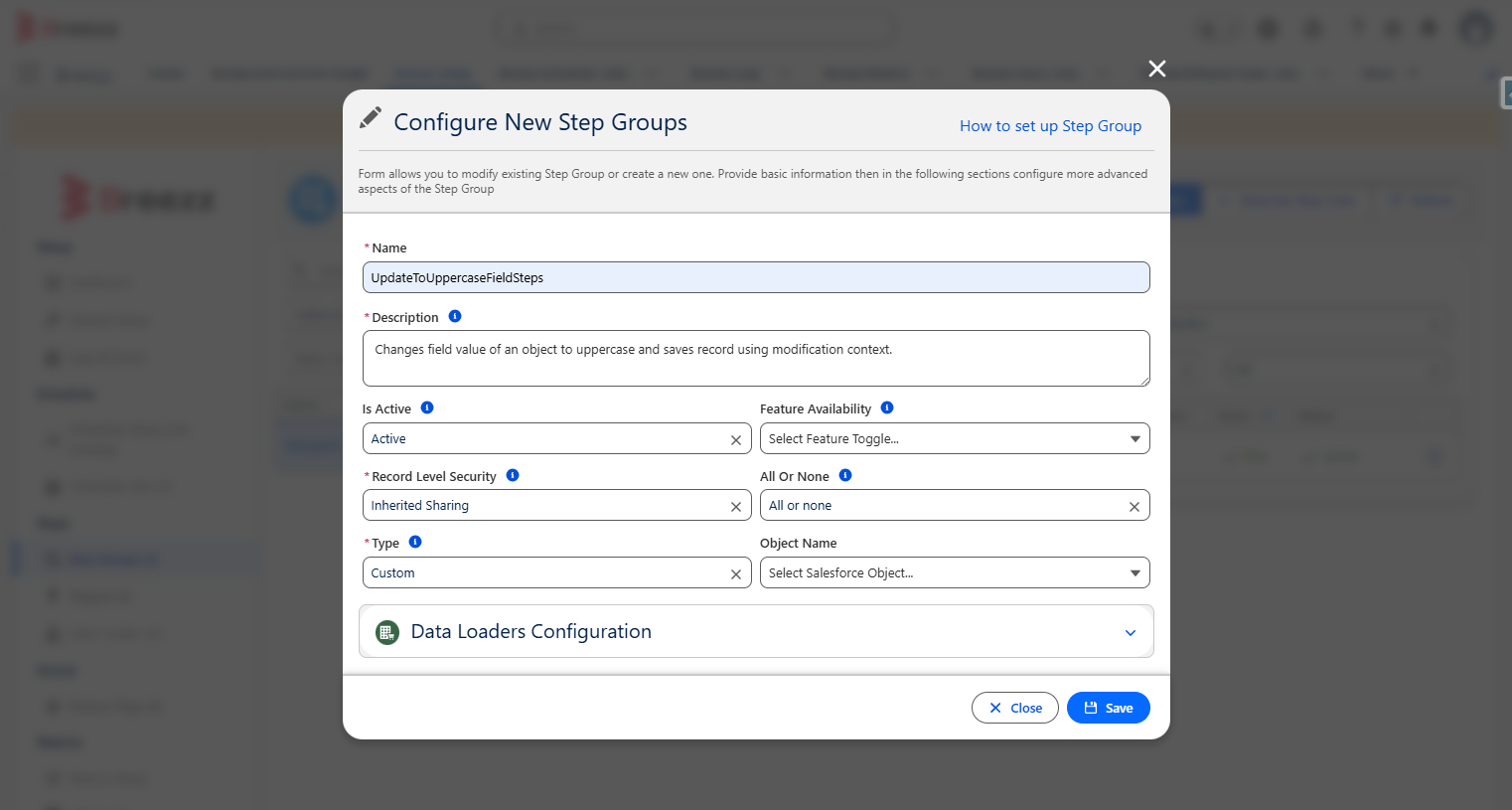
Now, let’s create a Step class that modifies Account records using the Modification Context:
// The class must extend the forvendi.Step class
public with sharing class UpdateToUppercaseFieldStep extends forvendi.Step {

    public UpdateToUppercaseFieldStep() {
        super(UpdateToUppercaseFieldStep.class.getName());
    }

    public override Boolean initRecordProcessing(Object record, Object optionalOldRecord) {
        SObject sfRecord = (SObject) record;
        String recordName = (String) sfRecord.get('Name');

        // Using Modification Context to stage changes safely without direct DML
        getContext().addModificationToUpdate(
             sfRecord.Id,
             Account.Name,
             String.isBlank(recordName) ? '' : recordName.trim().toUpperCase().replace('  ', '_')
        );

        // Return false as processing is complete for this record
        return false;
    }
}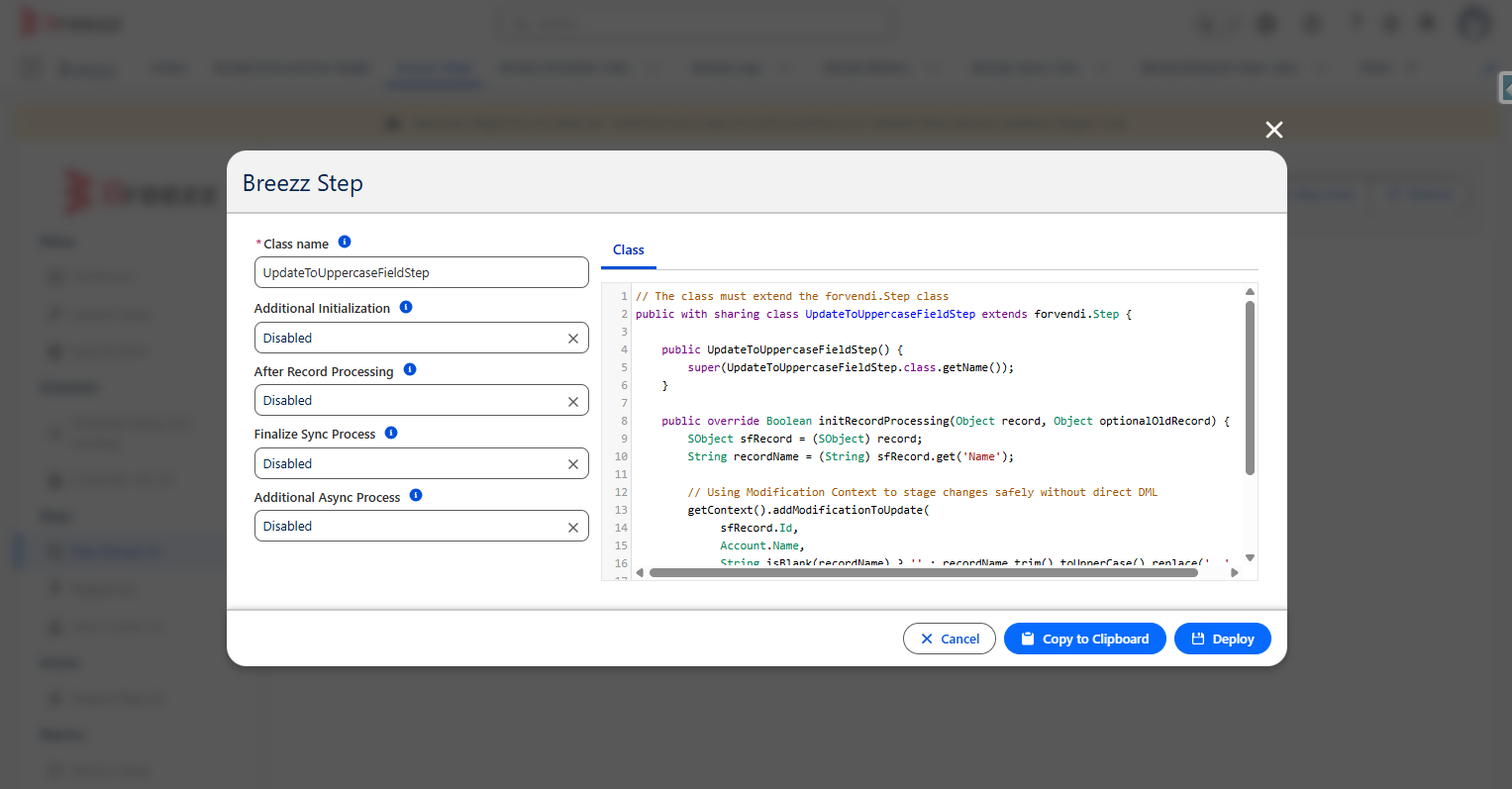
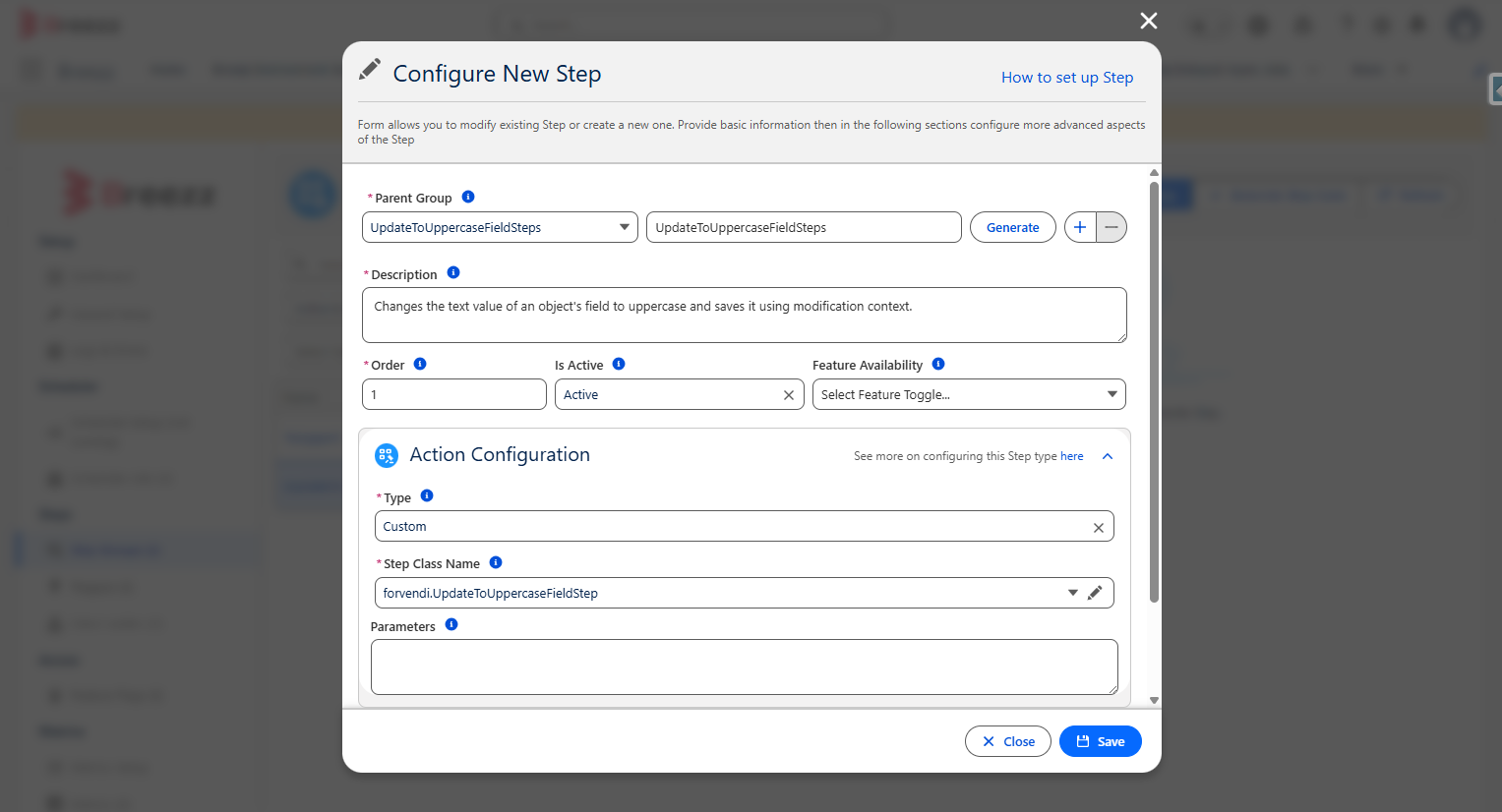
Register this Step inside your new Step Group (e.g., UpdateToUppercaseFieldSteps).
Scenario 1: Executing Step Group using a Set of IDs
In this scenario, we gather record IDs into a collection variable and pass them to the Step Group invocation action.
1. Create Flow Variables
Create an Autolaunched Flow and define the following resources:
SetOfIds: Text Collection Variable (Allow multiple values = true).Account: Single Record Variable (Object: Account).
2. Configure Flow Elements
- Assignment Block: Assign field values to your
Accountvariable (e.g., lowercase Name). - Create Records Block: Create the Account record and store its resulting
Idinside theSetOfIdstext collection variable. - Get Records Block: Query the Breezz Steps Group Config object (
forvendi__BreezzStepsGroupConfig__c) whereDeveloperNameequalsUpdateToUppercaseFieldSteps. - Apex Action Block: Select the
@invocablemethodforvendi__InvocableStepFunctions. PassSetOfIdsas the record IDs input and the retrieved Step Group Config record.
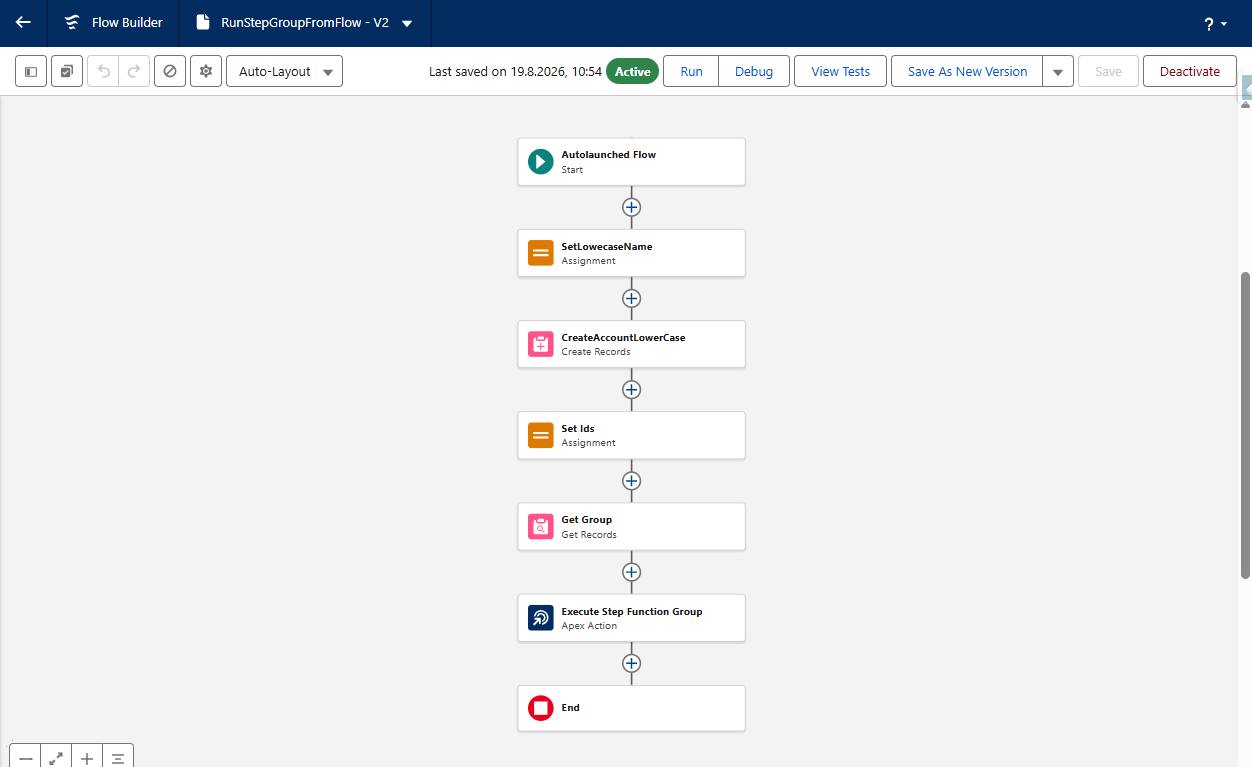
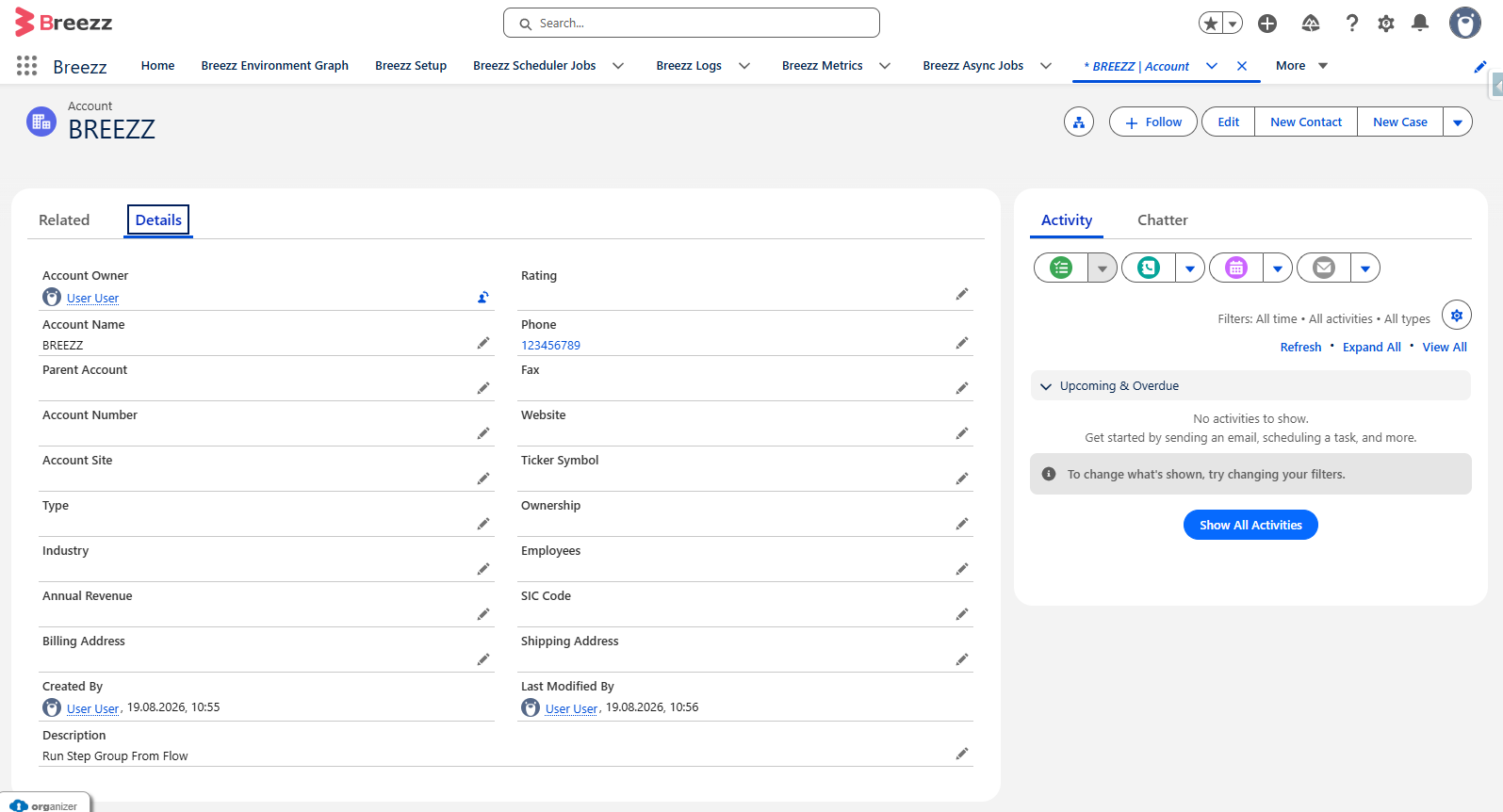
Save and run the flow. The resulting Account record will have its name formatted to uppercase by the Step Group logic.
Scenario 2: Executing Step Group using a List of SObjects
Alternatively, you can pass an in-memory collection of SObject records directly to a Step Group without querying IDs beforehand.
1. Create Flow Variables
Create a new Autolaunched Flow and add a Record Collection variable:
ListOfAccounts: Record Collection Variable (Object: Account,Allow multiple values = true,Available for input = true).
2. Configure Flow Elements
- Create Records Action: Create multiple records using your
ListOfAccountscollection variable. - Apex Action: Select the Apex action Run Step Group for provided records.
- SObject: Select
Accountfor both input and output. - Input Collection: Select
ListOfAccounts. - Step Group: Select
UpdateToUppercaseFieldSteps.
- SObject: Select
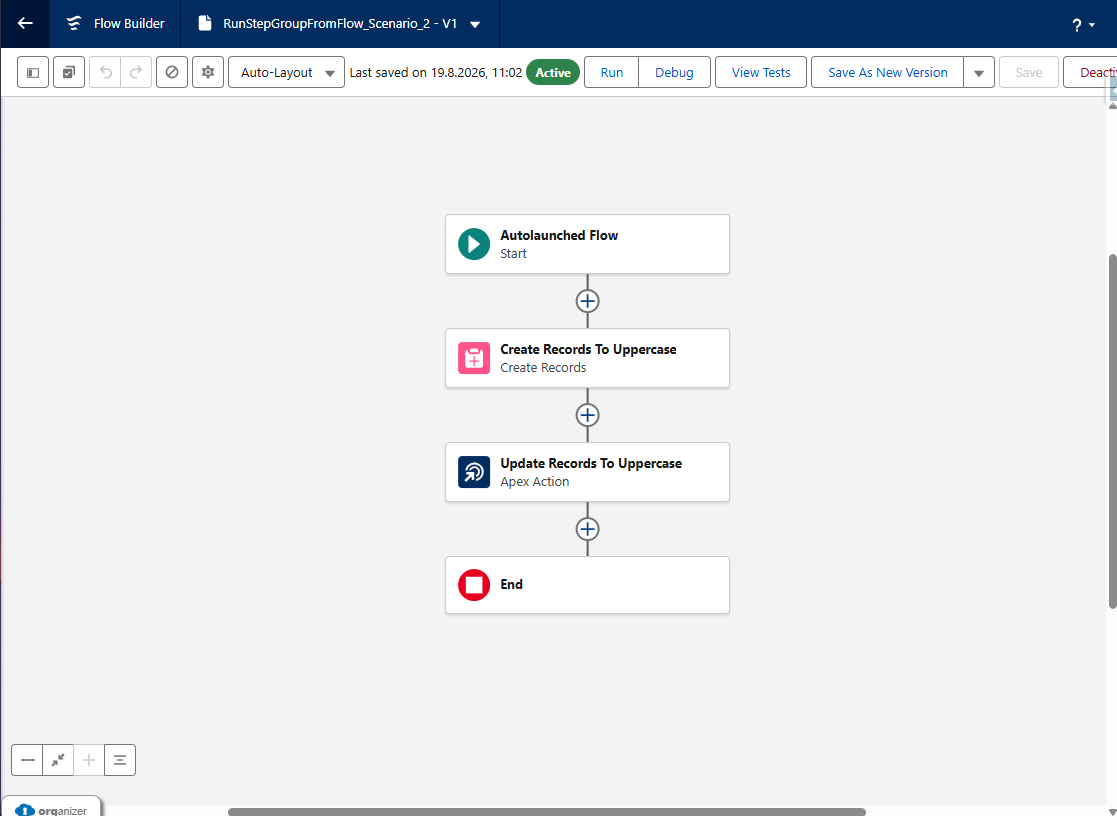
Your Autolaunched Flow layout should look as follows:
Save and activate the flow.
Testing the Flow via Apex
You can test the flow execution programmatically using Execute Anonymous in the Developer Console. Replace 'FlowLaunch' with the exact API Name of your flow:
// Create a parameter map to pass variables to the flow
Map<String, Object> params = new Map<String, Object>();
List<Account> accountList = new List<Account>();

// Generate example Account records
for (Integer i = 0; i < 5; i++) {
    Account acc = new Account(Name = 'tst acc ' + (i * i + 1));
    accountList.add(acc);
}

// Pass the list under the flow input variable name 'ListOfAccounts'
params.put('ListOfAccounts', accountList);

// Instantiate and start the flow interview
Flow.Interview myFlow = Flow.Interview.createInterview('FlowLaunch', params);
myFlow.start();
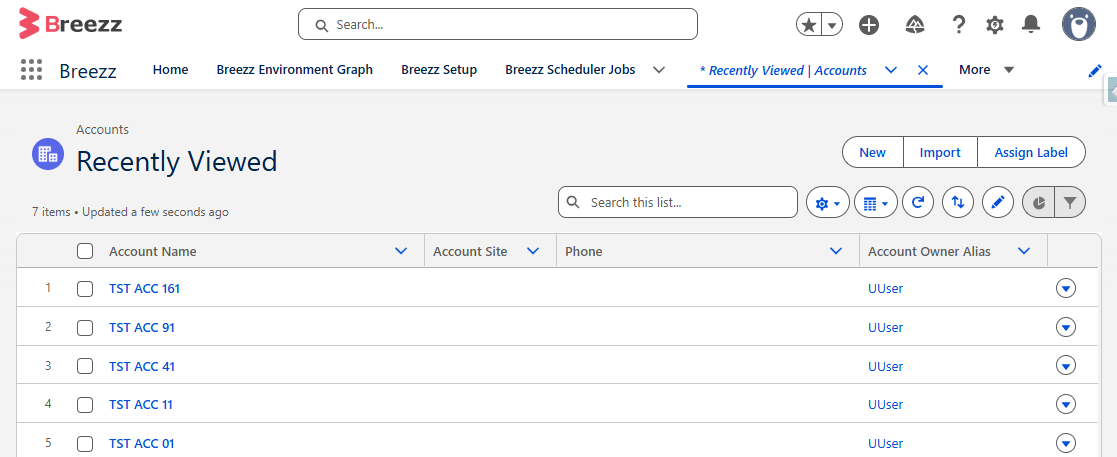
Upon execution, five new Account records will be inserted into Salesforce, all processed with uppercase Name values.