Step Groups Configuration
Step Groups are used as a box for variety of actions.
Step Group Creation
Option 1: Creation From Dashboard
- Open Breezz App.
- Go to Breezz Setup Tab.
- Click Create Group button.
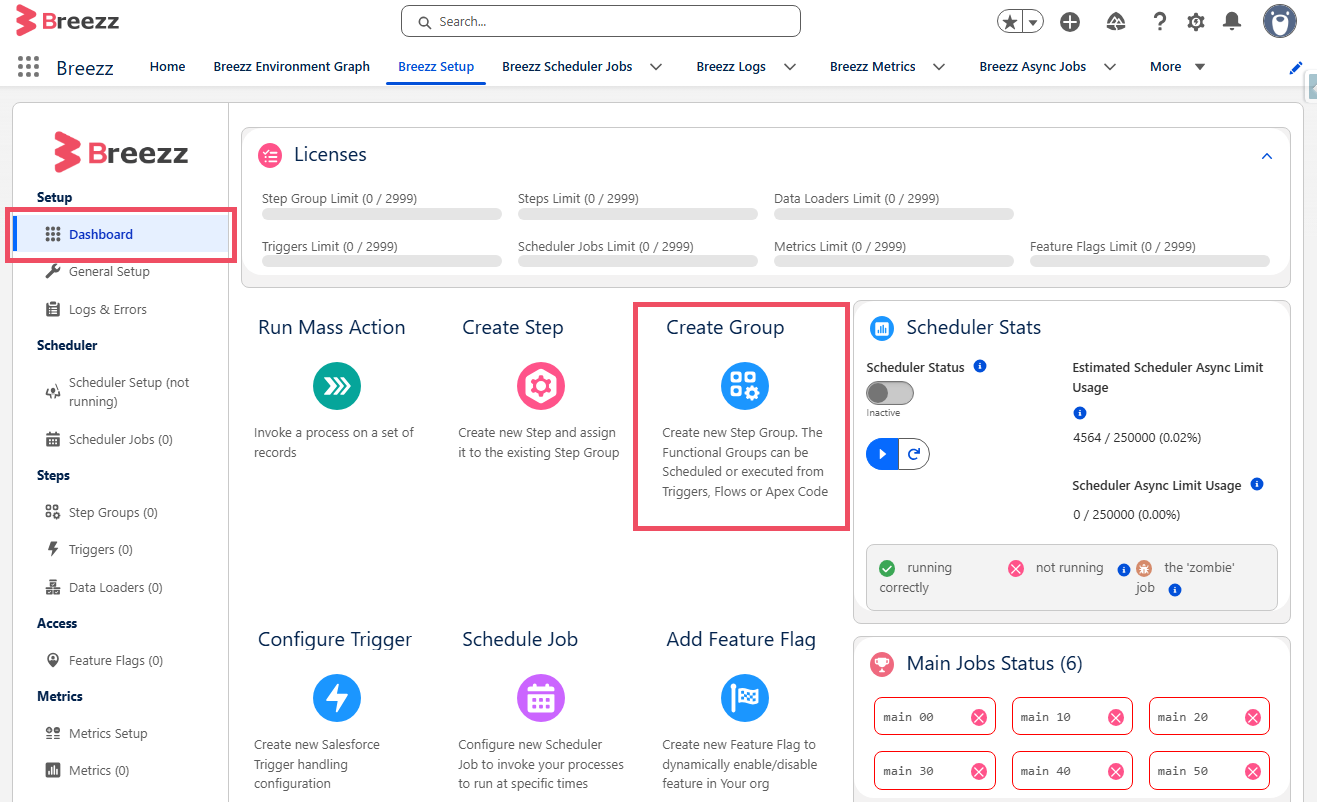
Option 2: Creation From Sidebar
- Open Breezz App.
- Go to Breezz Setup Tab.
- Click Step Groups sidebar tab.
- Click New Group button.
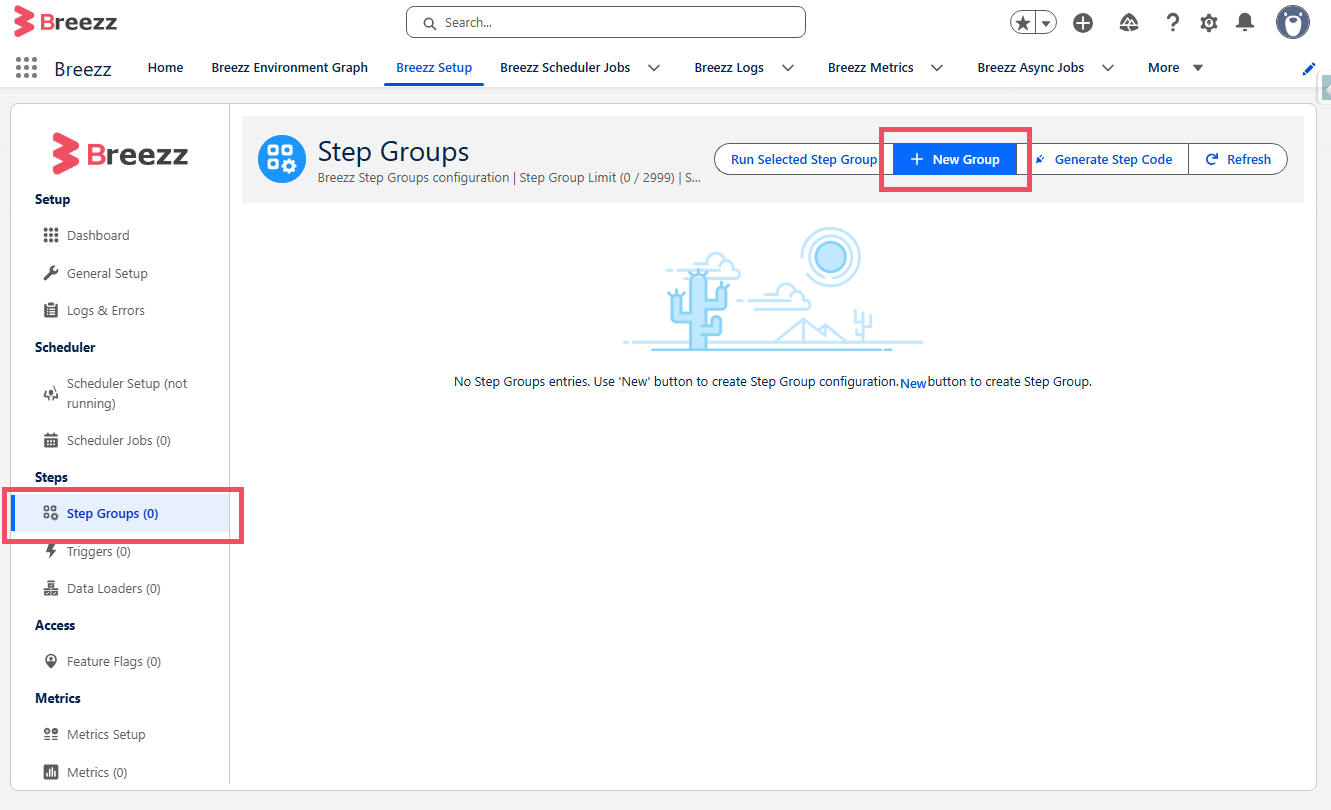 After clicking New Group, the configuration form will appear.
Step Group Configuration
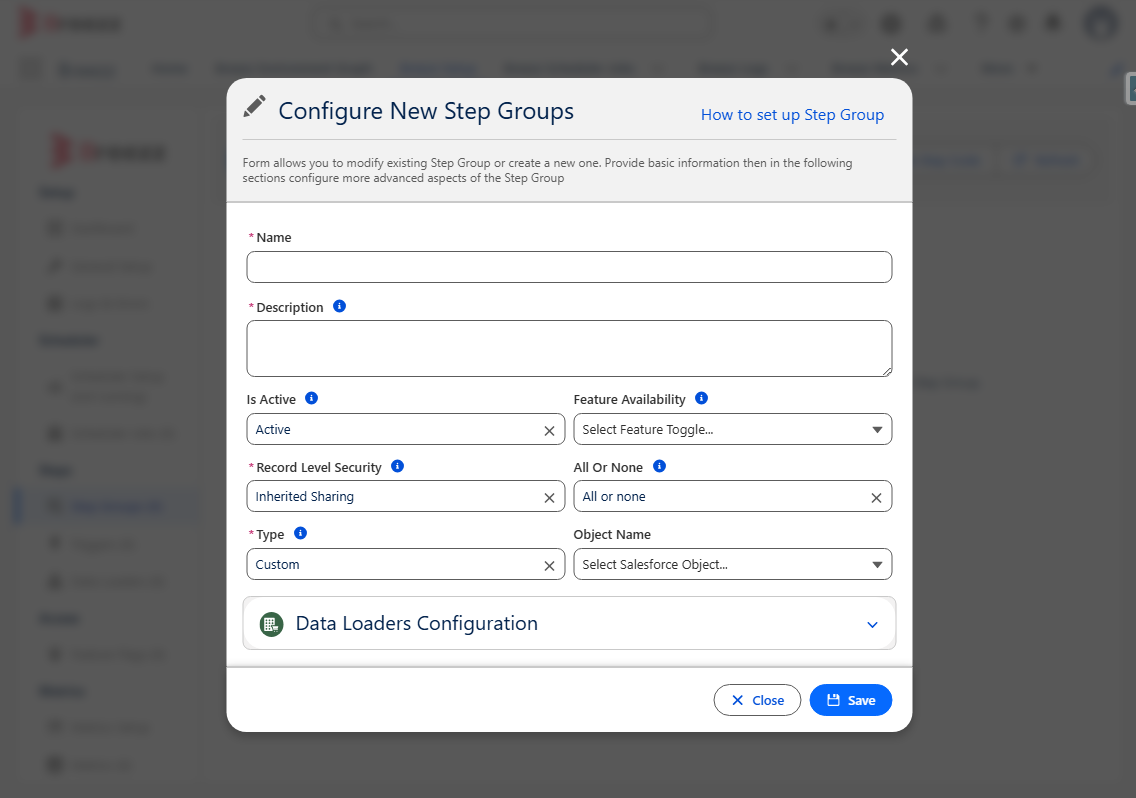
General Details:
- Name: The identifier for the configuration.
- Description: A description of the logic or functionality the group handles.
- Is Active: Determines whether the Step Group is active.
- Feature Availability: A special metadata binding that controls when the functionality is active. Enter the name of a created Breezz Feature Flag to control feature activation dynamically.
- Record Level Security: Specifies the sharing context for DML operations within the step group. Available options are with sharing, without sharing, and inherited sharing.
⚠️ Notice: If the running user does not have access to the object on which the DML operation is performed, and inherited sharing is selected, the operation will fail. To find out more about these three options, please refer to the Salesforce documentation.
-
All Or None: Determines if Change Handler will apply ‘all or none’ strategy during related objects modification. If ‘partial success’, a single record failure allows the remainder of the DML operations to succeed. If ‘all or none’, a single record failure rolls back the entire transaction.
-
Type: Determines the Group execution type:
- Trigger: Steps within this group are executed strictly in a trigger context. Require to add Object Name in the dynamic input.
- Custom: Steps are executed in non-trigger scenarios (e.g., directly via Apex code or through a Flow). Do not require to add Object Name butdevelopers can populate it to identify the associated object.
Data Loaders Configuration:
The Data Loader is responsible for loading data processed by Step Groups and Steps. It encapsulates the database queries, while the overarching DataStore class orchestrates and manages them.
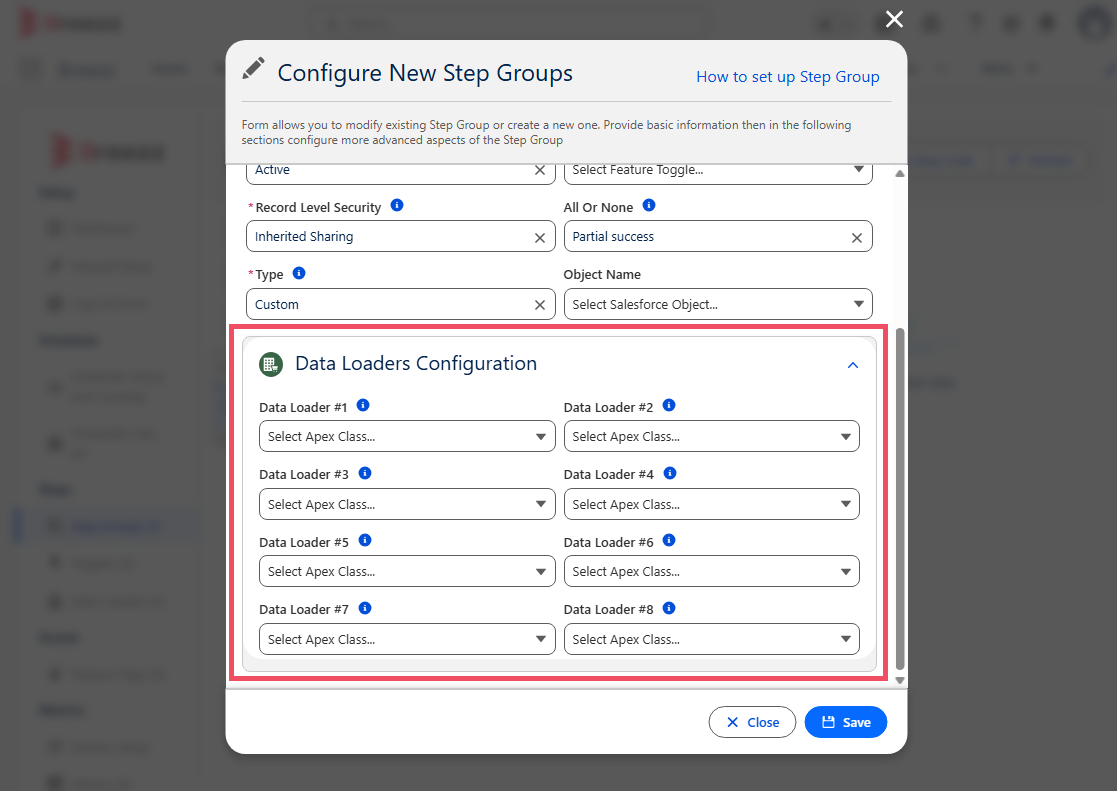
- Data Loader 1-8: Specifies the Apex classes acting as Data Loaders for this action. Data Loaders manage database queries and fetch data for processing within Steps. The
DataStoreclass is responsible for managing them automatically.
Object Relationships
The Object Relationships section allows you to define objects related to the context record. If a DML operation performed via the ModificationContext on a related record fails, the system handles the exception gracefully. Instead of throwing a raw exception, it uses the addError method to attach the error directly to the context record.
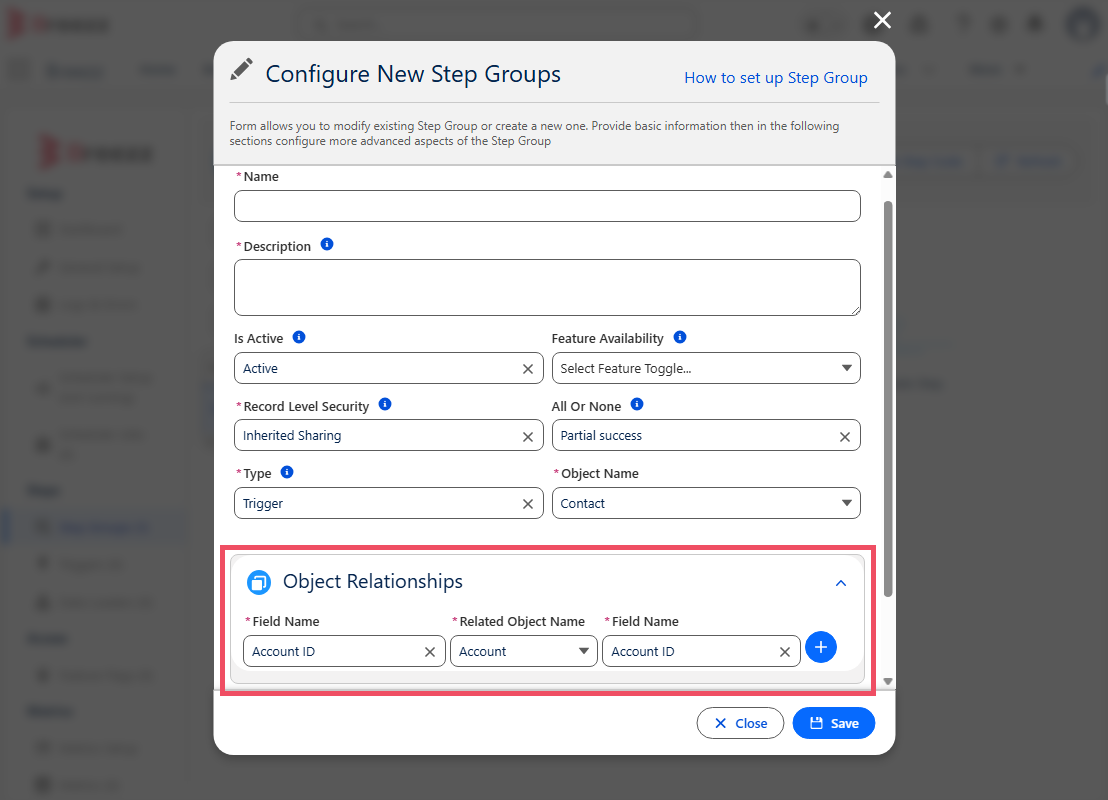
Input Details:
- Field Name: A lookup field on the context record..
- Related Object Name: The object referenced by the chosen lookup field.
- Related Field Name: The field on the related object. Any DML error on this field will trigger the
addErrormessage on the context record.
⚠️ Notice: This section is accessible only when the Group is configured as follows:
- Type is set to Trigger.
- All Or None is set to ‘Partial success’.
- Object Name is populated.