Run Step Group
Breezz allows you to execute an entire Step Group as an individual Step inside another processing pipeline. This enables modular, reusable process design by nesting step groups (e.g., executing email workflows and lead conversions sequentially within a master trigger pipeline).
Step 1: Deploy the Apex Trigger
Ensure the global Breezz trigger handler is active on the target object (e.g., Lead):
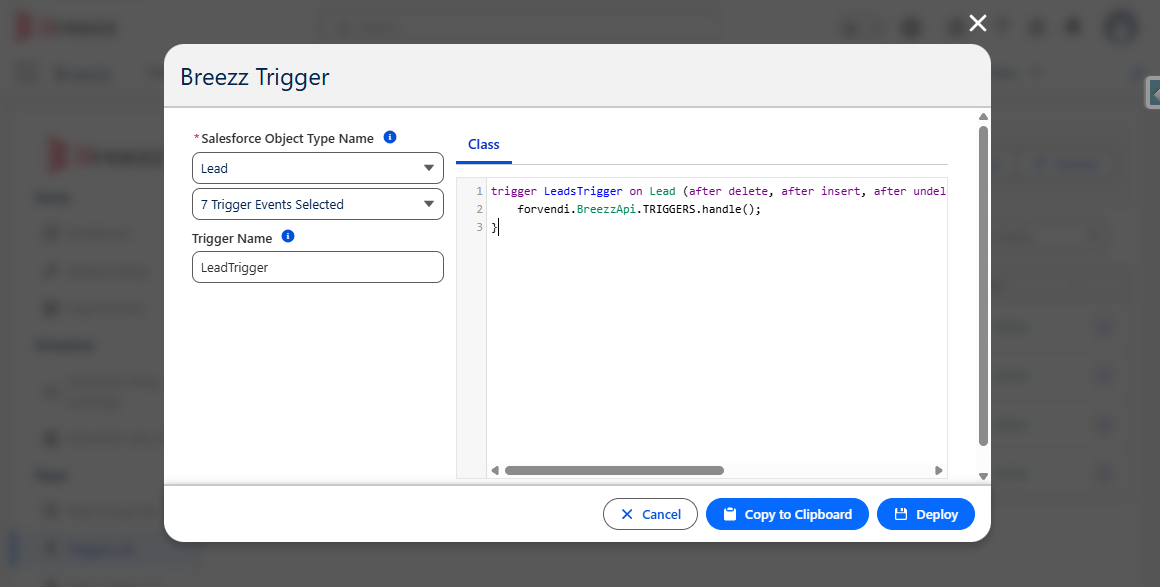
trigger LeadsTrigger on Lead (after delete, after insert, after undelete, after update, before delete, before insert, before update) {
    forvendi.BreezzApi.TRIGGERS.handle();
}
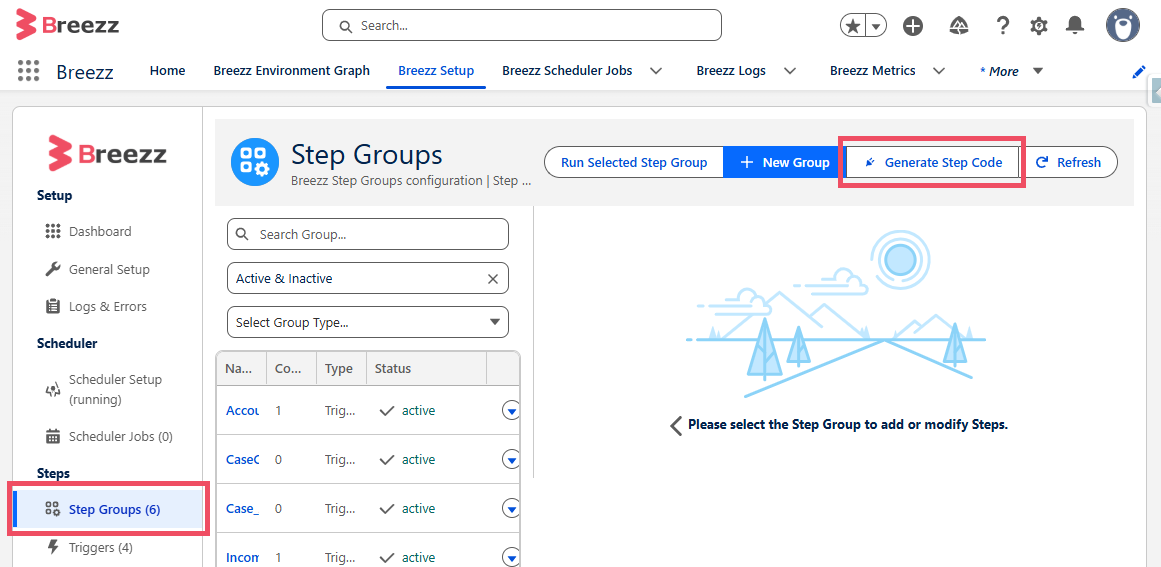
Step 2: Create the First Step Class (Email Messaging)
Create a Step class that checks lead criteria, prepares an outbound email, and queues a status update:
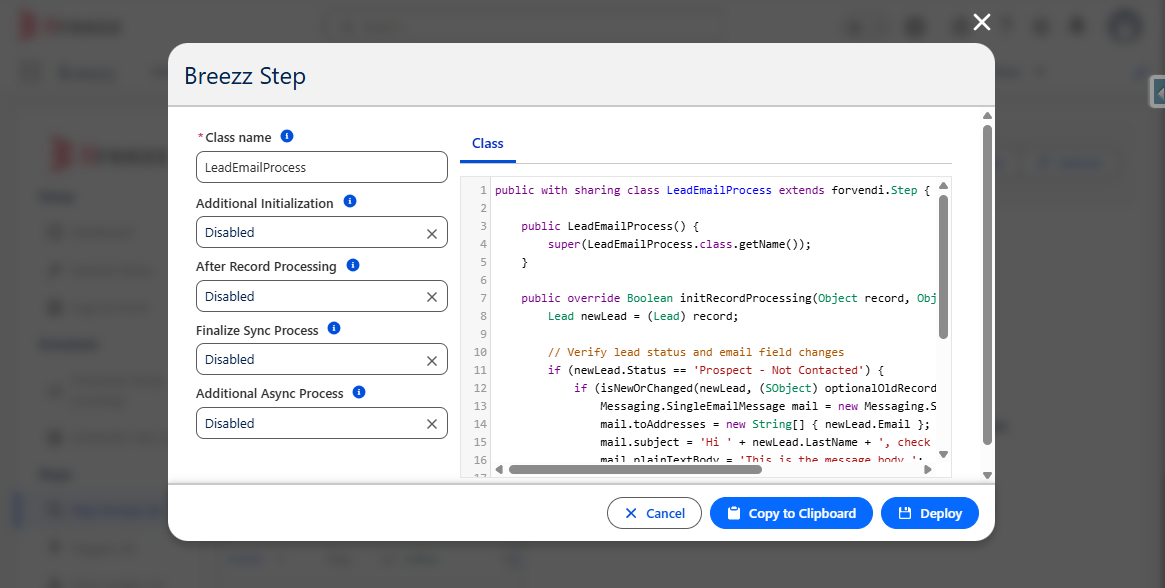
public with sharing class LeadEmailProcess extends forvendi.Step {

    public LeadEmailProcess() {
        super(LeadEmailProcess.class.getName());
    }

    public override Boolean initRecordProcessing(Object record, Object optionalOldRecord) {
        Lead newLead = (Lead) record;

        // Verify lead status and email field changes
        if (newLead.Status == 'Prospect - Not Contacted') {
            if (isNewOrChanged(newLead, (SObject) optionalOldRecord, Lead.Email) && newLead.Email != null) {
                Messaging.SingleEmailMessage mail = new Messaging.SingleEmailMessage();
                mail.toAddresses = new String[] { newLead.Email };
                mail.subject = 'Hi ' + newLead.LastName + ', check out our catalogue';
                mail.plainTextBody = 'This is the message body.';

                Messaging.SingleEmailMessage[] mails = new List<Messaging.SingleEmailMessage> { mail };

                // Queue transactional email send and record update in ModificationContext
                getContext().addToSend(mails);
                getContext().addModificationToUpdate(newLead.Id, Lead.Status, 'Prospect - Contacted');
            }
        }
        return false;
    }
}
Step 3: Create the Second Step Class (Lead Conversion)
Create a second Step class to handle programmatic lead conversion when conditions are met:
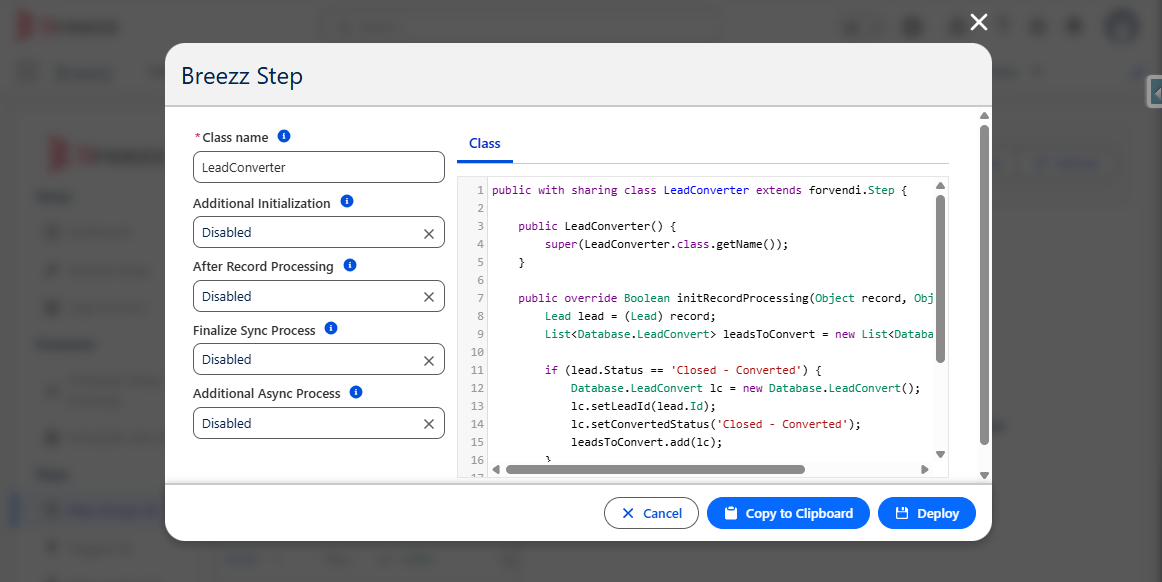
public with sharing class LeadConverter extends forvendi.Step {

    public LeadConverter() {
        super(LeadConverter.class.getName());
    }

    public override Boolean initRecordProcessing(Object record, Object optionalOldRecord) {
        Lead lead = (Lead) record;
        List<Database.LeadConvert> leadsToConvert = new List<Database.LeadConvert>();

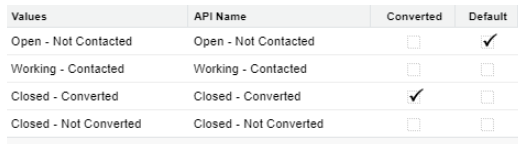
        if (lead.Status == 'Closed - Converted') {
            Database.LeadConvert lc = new Database.LeadConvert();
            lc.setLeadId(lead.Id);
            lc.setConvertedStatus('Closed - Converted');
            leadsToConvert.add(lc);
        }

        // Queue lead conversion pass in ModificationContext
        getContext().addToConvert(leadsToConvert);

        return false;
    }
}
Step 4: Configure Nested Step Groups in Breezz Setup
-
Create a dedicated child Step Group named
LeadProcessing.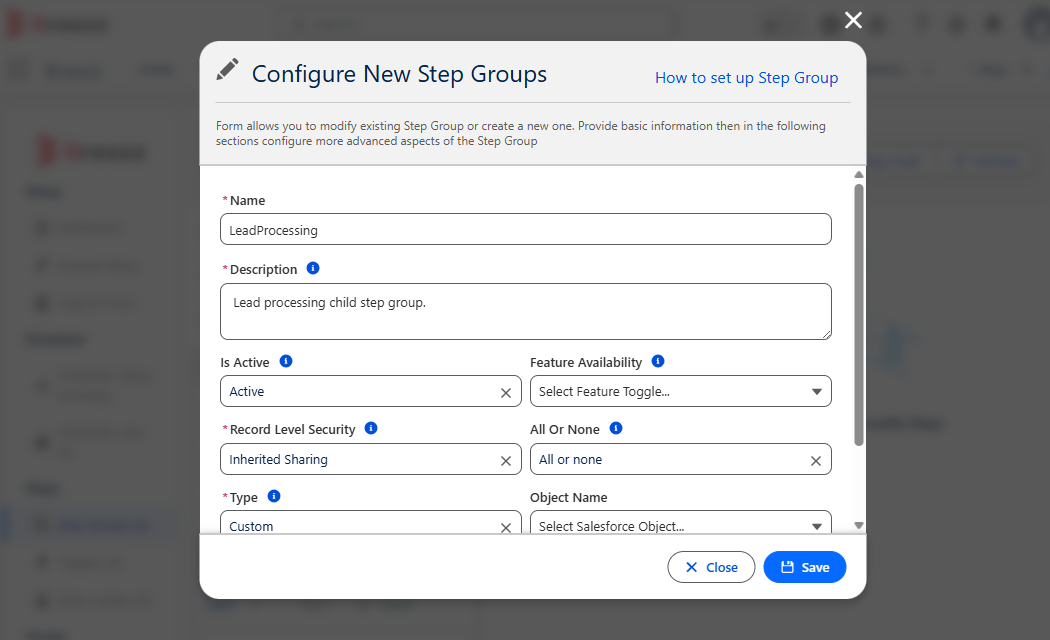
-
Register
LeadConverteras a Step inside theLeadProcessinggroup.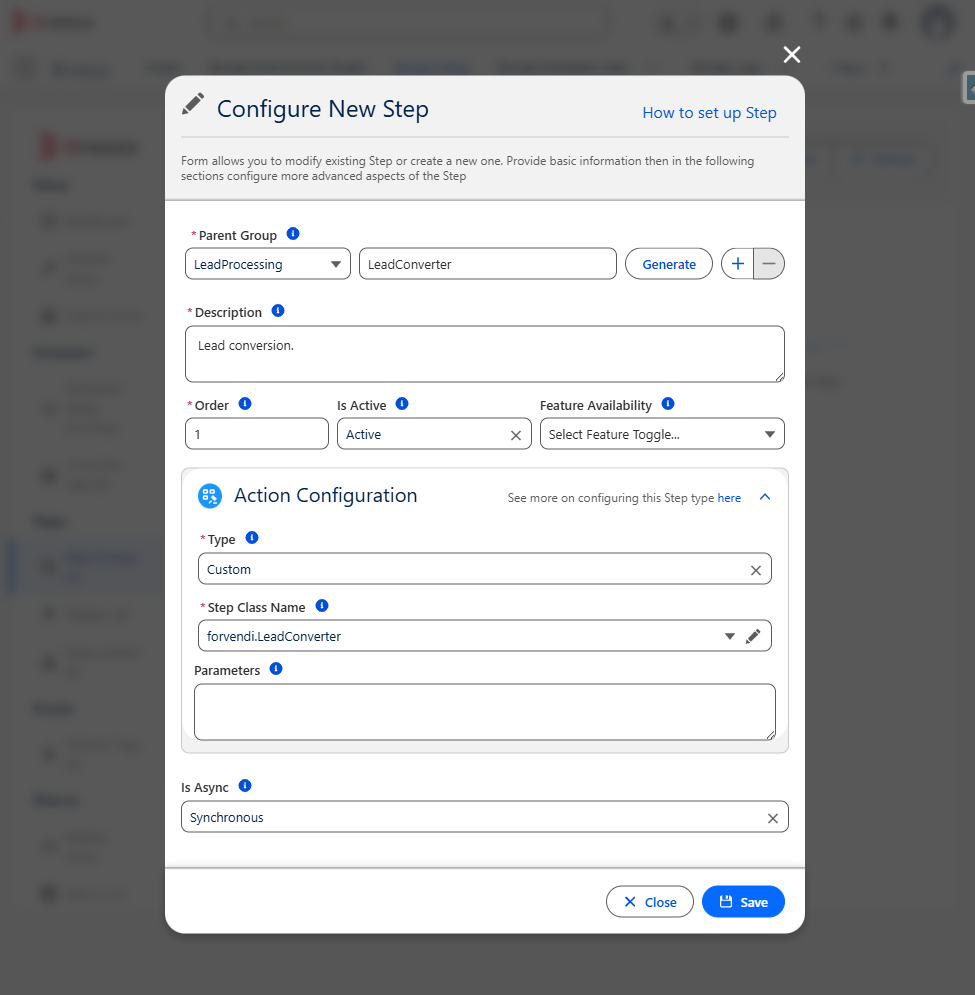
-
Return to your primary trigger-bound Step Group (e.g., auto-generated on
LeadAfter Update). -
Click New Step, set Type to Group, and select
LeadProcessingas the target group.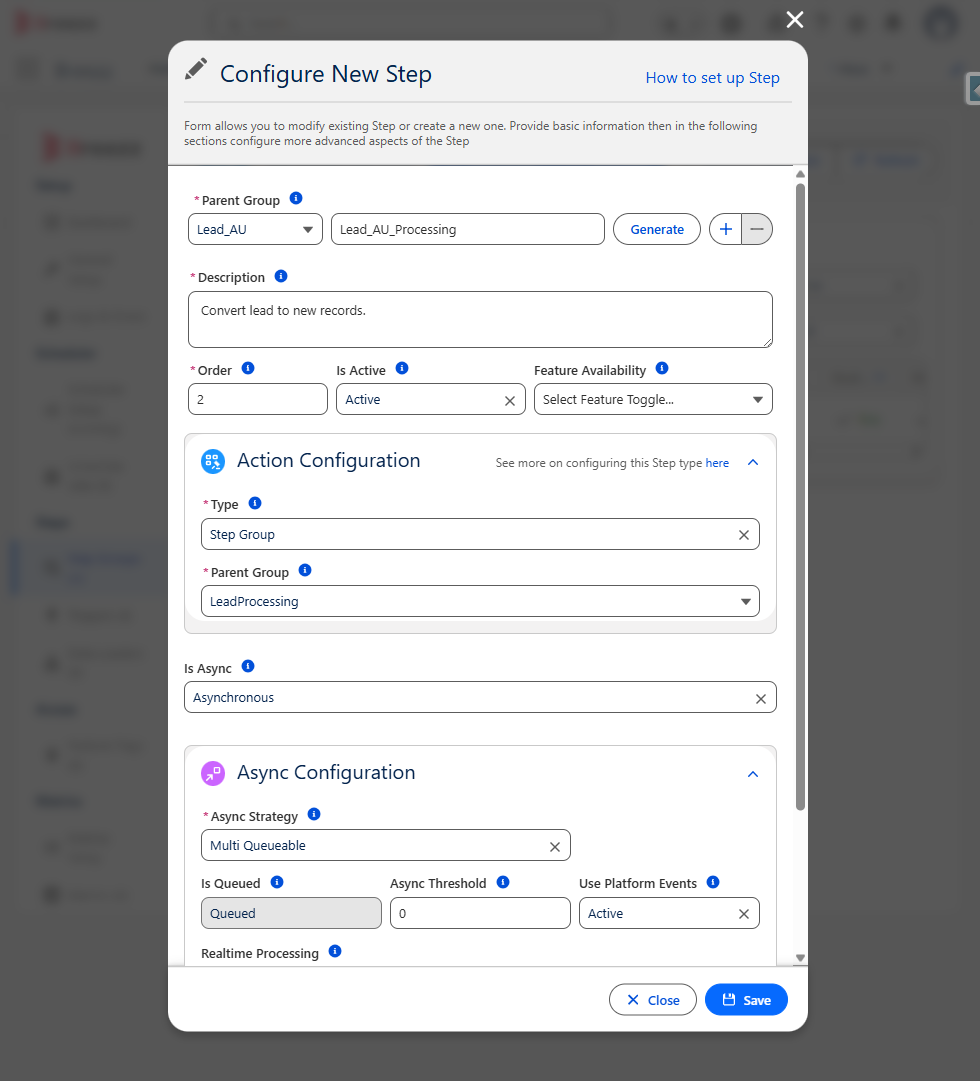
Verification and Execution Order
When a Lead record is updated:
- The primary trigger fires and executes the primary Step Group.
- The primary group runs
LeadEmailProcess, queuing outbound emails and setting the status to “Prospect - Contacted”. - The pipeline evaluates the nested
LeadProcessingStep Group, runningLeadConverterto convert records if the status equals “Closed - Converted”.
💡 Apex API Reference: To learn more about queuing lead conversions (
addToConvert) or email dispatch (addToSend), check out Breezz APEX API - ModificationContext.